What is an Alpha Channel?
An alpha channel is an additional data channel stored in a digital image or video file that holds transparency information for every pixel. It tells your software exactly how opaque or transparent each pixel should be — from completely visible to completely invisible, or anything in between.
Think of it this way: every color image you see on a screen is built from three color channels — Red, Green, and Blue (RGB). These channels mix together to produce the millions of colors we see. The alpha channel is a fourth channel added alongside these three, but it carries no color information at all. Its only job is to answer one question for each pixel: "How visible should this pixel be?"
SIMPLE ONE-LINE DEFINITION
An alpha channel is the transparency map of a digital image — a grayscale guide that tells software which pixels are fully visible, fully invisible, or somewhere in between.
If you've ever exported a logo as a PNG and placed it on a colored background — and the white box around it disappeared, revealing the background beneath — you experienced an alpha channel at work. This is a fundamental concept in What is a PSD File and digital imaging. The same technology powers Hollywood VFX composites, game textures, news broadcast lower-thirds, and every semi-transparent button on your phone.
The RGBA Color Model — Adding Transparency to RGB
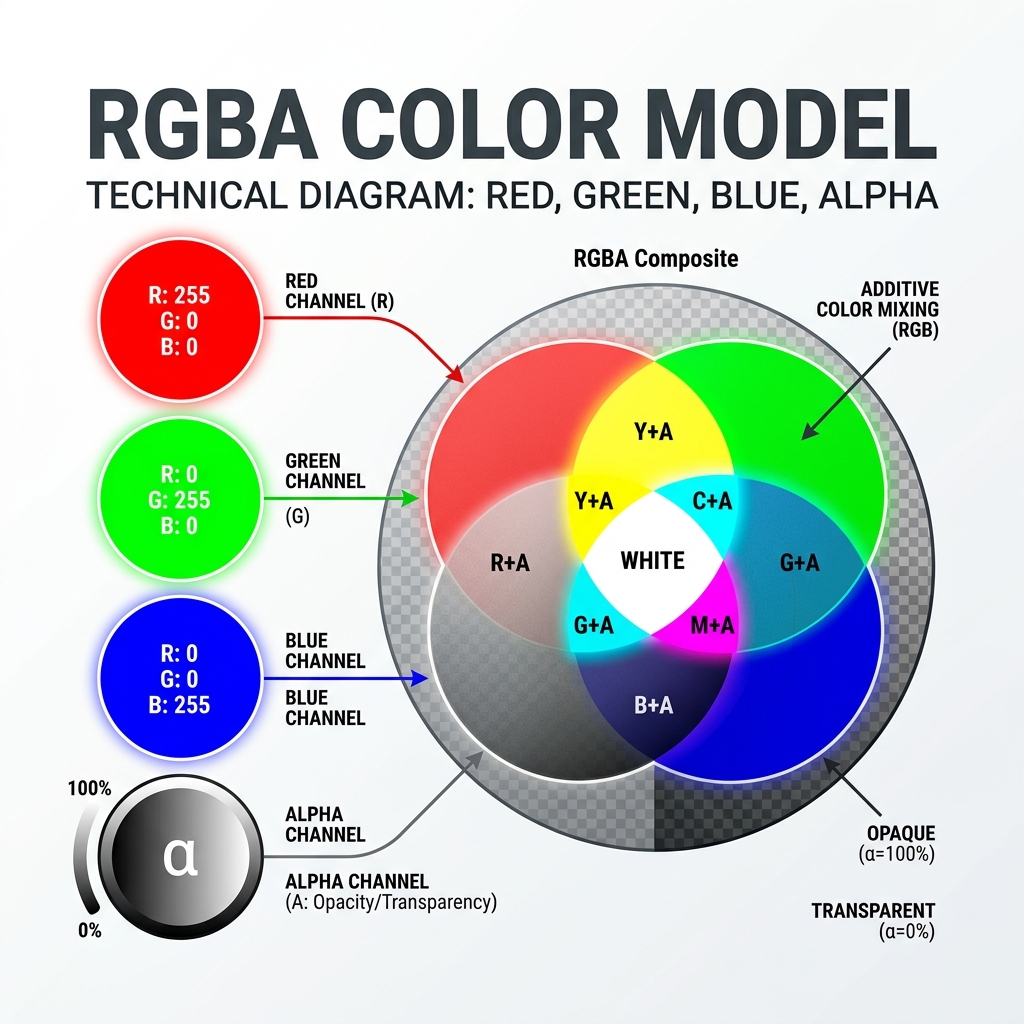
Standard digital color is built on the RGB model — Red, Green, and Blue. Every pixel on your screen is a combination of these three values, each ranging from 0 to 255. When you add an alpha channel, the model becomes RGBA:
Range 0–255
Range 0–255
Range 0–255
255 = solid
RGBA(255, 0, 0, 128) = 50% Semi-transparent pure red
·
RGBA(0, 0, 255, 255) = Fully opaque Blue
A practical example: RGBA(255, 0, 0, 128) represents a red color that is 50% transparent. The first three values define the color (pure red). The alpha value of 128 — exactly half of 255 — means that pixel is half see-through, blending the red with whatever is beneath it.
In CSS, you'll often see this written as rgba(255, 0, 0, 0.5) where the alpha is expressed as a decimal from 0 (invisible) to 1 (opaque), rather than 0–255.
Need PSD Help?
Your time is worth more than solving pixel errors. Hire a professional editor to handle the technical work while you focus on your business.
How an Alpha Channel Looks — The Grayscale Map
Here is a key concept that confuses many beginners: an alpha channel has no color. It is always displayed as a grayscale image. The brightness of each pixel in the alpha channel directly encodes its opacity:
This is why when you view an alpha channel in Photoshop's Channels panel, you see a black-and-white (plus gray) version of your image, not a colorful one. The white area is the "kept" region; the black area is the "removed" region; and gray is the soft, feathered edge in between — producing those smooth, professional cut-outs.
How Alpha Values Work — The Full Scale
For an 8-bit image, the alpha channel has 256 possible levels (0–255). This means you can have 256 distinct degrees of transparency — giving enormous precision for effects like soft shadows, glass, water, smoke, and feathered edges.
A Brief History of Alpha Channels
The alpha channel is not a recent invention. It was invented in late 1977 by Alvy Ray Smith and Ed Catmull while working at the New York Institute of Technology (NYIT) Computer Graphics Lab. Alvy Ray Smith would later co-found Pixar with Ed Catmull in 1986, with Steve Jobs acting as their financial backer.
The concept was fully formalized in a landmark 1984 paper by Thomas Porter and Tom Duff, who were working at Lucasfilm at the time, titled "Compositing Digital Images." This paper introduced the alpha channel specifically for per-pixel opacity information, alongside a comprehensive "compositing algebra" featuring 12 fundamental operators (the same operators used in every image editor, game engine, and video software today).
The name "alpha" was coined by Alvy Ray Smith based on the classic linear interpolation formula ($A \alpha + B(1-\alpha)$). He needed a mathematical coefficient to control the amount of interpolation between two images A and B, stating: "we called it Alpha as we always used Greek letters for things."
FUN FACT
Alpha channels grew out of practical filmmaking needs. Early computer graphics artists needed a way to composite CGI elements over live-action footage without refilming scenes. The alpha channel was the solution that made this seamless blending possible.
Where Are Alpha Channels Used? — Real-World Applications
Alpha channels are used across virtually every creative digital field, often in conjunction with What are Blend Modes to create complex visual effects. Here are the most important applications:
In Photoshop and GIMP, alpha channels act as masks to hide or reveal parts of an image. Used for cut-outs, composites, and complex selections with hair, fur, and fine details.
In After Effects and Premiere Pro, alpha channels determine how one video clip overlays another. Used for lower-thirds, animated logos, title cards, and all CGI compositing.
Used for semi-transparent textures like smoke, fire, water ripples, glass, and UI elements. Game engines like Unreal and Unity use alpha channels extensively in their rendering pipeline.
CSS uses RGBA colors for transparent backgrounds, overlays, and buttons. PNG files with alpha channels let logos and icons sit cleanly on any background color.
In Blender, Cinema 4D, and Unreal Engine, alpha defines which pixels of a rendered 3D object are visible. Essential for rendering objects with transparency against any background.
Alpha channels are used to remove backgrounds from product photos, creating clean cut-outs that work on any background — white, colored, or lifestyle imagery.
The lower-third graphic that shows a person's name and title on a news broadcast is a file with an alpha channel. The text is opaque; the background is transparent.
Artists use alpha channels to create complex layering effects in Krita, Procreate, and Photoshop — enabling depth, realism, and professional-grade compositing in digital paintings.
Alpha Channels in Photoshop — How to Use Them
In Adobe Photoshop, alpha channels live in the Channels panel (Window → Channels), alongside the Red, Green, and Blue color channels. They are used to save and store selections so they can be reloaded at any time — even after you close and reopen the file.
KEY RULE IN PHOTOSHOP
White = selected / visible · Gray = partially selected / semi-transparent · Black = deselected / invisible. You can paint directly on an alpha channel with a brush to refine your selection pixel by pixel.
How to Create an Alpha Channel in Photoshop
Make a selection
Use any selection tool — Quick Selection (W), Lasso, or Select Subject — to select the area you want to save.
Open the Channels panel
Go to Window → Channels. You'll see R, G, B channels listed. At the bottom, click the "Save selection as channel" icon (circle inside a rectangle).
Your 'Alpha 1' channel appears
A new grayscale channel named "Alpha 1" appears in the panel. White = your selection. Black = unselected. Gray = soft edges.
Edit your alpha channel
Click the alpha channel to select it. Use a white brush to add to the selection, a black brush to subtract. Use curves/levels to refine edges.
Load your selection back
Ctrl+click (Cmd+click on Mac) the alpha channel thumbnail to reload the saved selection at any time. It will appear as marching ants just like before.
Save as PSD or TIFF
Save your file as PSD (Photoshop format) or TIFF to preserve the alpha channel. Saving as JPEG will permanently discard it.
Alpha channels in Photoshop are perfect for preserving complex selections — especially wisps of hair, fur, feather details, or smoke — where a pixel-perfect, smooth edge is essential. They let you store multiple complex selections without creating additional layers. In fact, a single PSD file can natively store dozens of independent alpha channels simultaneously, acting as a massive library of masks for your project.
PRO LEVEL: 16-BIT ALPHA
Standard images use 8-bit alpha channels, offering 256 degrees of transparency. However, professional photographers working in 16-bit PSD or TIFF formats unlock 16-bit alpha channels with 65,536 levels of transparency. This massive jump in data eliminates banding in extremely soft gradients and shadows.
Alpha Channels in Video Editing
In video production, alpha channels are just as essential as they are in still images. Any time you layer a graphic over footage — a title card, an animated logo, a broadcast lower-third, a particle effect — an alpha channel is defining exactly which pixels of that graphic are visible.
In Adobe After Effects and Premiere Pro, when you import a video file with an embedded alpha channel (such as a QuickTime MOV with ProRes 4444 codec, or a PNG sequence), the software reads the transparency data automatically. The clip's transparent areas let the layers below show through — enabling seamless compositing.
IMPORTANT FOR VIDEO EDITORS
When rendering video with a transparent background in After Effects, always choose a codec that supports alpha — such as ProRes 4444, DNxHR, or Animation. H.264 and H.265 (MP4) do NOT support alpha channels.
Real-world broadcast example: The name graphic ("Dana Cole · Senior Motion Designer") that appears at the bottom of a TV news broadcast is a pre-rendered video file with an alpha channel. The graphic's text and background design are opaque; the rest of the frame is fully transparent — letting the live camera feed show behind it naturally.
Alpha Channels in Web Design & CSS
On the web, alpha channels power transparency in two main ways: through PNG image files and through CSS RGBA colors.
When you export a logo as a PNG-24, the transparent areas around the logo are stored as an alpha channel. When a browser displays that PNG on a web page, it reads the alpha values and blends the logo pixels with whatever background color or image lies beneath — making the logo appear to "float" cleanly over any background, without a bounding box.
CSS RGBA in Action
In CSS, RGBA values let you apply transparency directly to any color:
/* Semi-transparent overlay */
background-color: rgba(0, 0, 0, 0.5);

/* Transparent white button */
background-color: rgba(255, 255, 255, 0.15);

/* Tinted background */
background-color: rgba(44, 58, 140, 0.08);
This is exactly the same concept as an image alpha channel — you are defining the opacity of a color value alongside its R, G, and B components. The web uses this for modal overlays, frosted-glass UI effects, semi-transparent cards, and subtle background tints.
File Formats & Alpha Channel Support
Not every image format supports alpha channels. Choosing the wrong format will silently discard your transparency data — replacing transparent areas with white or black. Here is the complete breakdown:
| Format | Alpha Support | Best Used For |
|---|---|---|
| PNG | ✅ Full (8-bit) | Web Standards Web graphics, logos, icons — the standard for web transparency. |
| PSD | ✅ Full (16-bit) | Photoshop Core Photoshop working files. Supports multiple complex alpha channels simultaneously. |
| TIFF | ✅ Full (16-bit) | Print & Archival Print design, photography — high-quality lossless with perfect transparency. |
| WebP | ✅ Full (8-bit) | Modern Web Smaller file sizes than PNG with identical full alpha support. Highly recommended. |
| AVIF | ✅ Full (12-bit) | Next-Gen Web Modern image format offering far better compression than PNG, complete with deep-color alpha support. |
| TGA | ✅ Full (8-bit) | Game Engines Classic industry format for game textures and VFX pipelines. |
| GIF | ⚠️ Binary Only | Legacy Animation Only 1-bit transparency (on or off). Creates jagged, pixelated borders. |
| JPEG | ❌ None | Photographs Only Transparent areas become permanently filled with white (or black) when saved. |
CRITICAL WARNING
JPEG does NOT support alpha channels. If you save a PNG with a transparent background as a JPEG, all transparent areas will be permanently filled with white (or sometimes black). Always use PNG, WebP, or TIFF when transparency must be preserved.
Straight Alpha vs Premultiplied Alpha
When working in professional VFX, game development, or video production, you'll encounter two types of alpha channels. Understanding the difference prevents one of the most common and frustrating artifacts in compositing: dark halos or white fringes around objects.
Straight Alpha (Unassociated Alpha)
The RGB color channels and the alpha channel are stored completely separately and independently. The color of a transparent pixel is stored as its original color, even if it isn't visible in the final output. This is the most common type and generally produces the cleanest edges. Use this when exporting for professional VFX pipelines.
Premultiplied Alpha (Associated Alpha)
In this method, the RGB values are multiplied by the alpha value before being stored. So a fully transparent pixel has RGB values of (0, 0, 0) regardless of its actual color. This is used by some compositing software and game engines because it simplifies the blending math at render time. However, mixing premultiplied and straight alpha incorrectly is the #1 cause of those white or black halos you sometimes see around composite elements.
PRACTICAL RULE: THE 'STRAIGHT' STANDARD
If you are a web designer or 2D artist, you almost certainly use Straight Alpha natively. Adobe Photoshop, GIMP, web CSS rendering, and PNG files all use Straight Alpha by default. If you're working in After Effects or Premiere Pro with pre-rendered footage, you just need to check your "Interpret Footage" settings to match the exported format.
Common Alpha Channel Problems & How to Fix Them
White or black halo around composited image
This is the classic premultiplied vs straight alpha mismatch. Fix: In After Effects, right-click your footage → Interpret Footage → Straight-Unmatted. In Photoshop, use "Defringe" (Layer → Matting → Defringe) to remove edge fringing.
Transparent background shows as white after saving
You saved as JPEG. JPEG does not support alpha channels. Fix: Re-save your file as PNG, WebP, TIFF, or PSD to preserve transparency.
Checkerboard pattern visible in my design program
This is not a problem! The checkerboard pattern is how Photoshop, GIMP, and other design tools display transparency. It means your alpha channel is working correctly. The checkerboard will not appear in the final exported image.
Jagged, pixelated edges around a transparent object
This is caused by a 1-bit GIF-style transparency or poor anti-aliasing. Fix: Use PNG instead of GIF. In Photoshop, ensure "Anti-alias" is checked in your selection tools before creating your selection.
Game/app running slowly with many transparent textures
This is a real performance concern. Every semi-transparent pixel requires additional blending calculations from the GPU. Fix: Optimize by using fully opaque textures where possible, batching transparent objects, and using alpha testing instead of alpha blending for simple 2-state transparency.
Learning Path: Top Alpha Channel Tutorials
Best Tutorials to Learn Alpha Channels
Learn everything about transparency and alpha channels with these highly-rated professional guides.
Search: 'alpha channels Photoshop tutorial' — PRO EDU and Phlearn have excellent, clear explanations
Search: 'what is alpha channel explained' — Good beginner overviews from Adobe's own YouTube channel
Search: 'alpha channel After Effects' — Motion Array and School of Motion have great compositing tutorials
Search: 'PNG transparency web design' — Kevin Powell explains CSS transparency and RGBA beautifully
Search: 'alpha channel Unity texture' — Brackeys and Game Dev Guide cover game transparency well
Search: 'straight vs premultiplied alpha' — VFX Study and Corridor Crew cover this advanced topic
Frequently Asked Questions
What is an alpha channel in simple terms?+
An alpha channel is a transparency map stored inside a digital image or video file. It is a grayscale layer that tells software how visible each pixel should be — white means fully opaque (solid), black means fully transparent (invisible), and gray means semi-transparent. It's the technology behind every PNG with a clear background.
What does an alpha channel look like?+
An alpha channel always appears as a grayscale image — never in color. White pixels represent fully opaque (visible) areas. Black pixels represent fully transparent (invisible) areas. Gray pixels represent various degrees of partial transparency. You can view it in Photoshop via the Channels panel.
Which image file formats support alpha channels?+
Formats that support alpha channels include PNG, PSD, TIFF, WebP, HEIF, TGA, and DDS. GIF supports a very basic binary transparency (on or off only — no soft edges). JPEG does NOT support alpha channels at all — transparent areas become white when saved as JPEG.
What is the difference between an alpha channel and a layer mask in Photoshop?+
A layer mask is attached to a specific layer and is temporary — it controls visibility non-destructively. An alpha channel is saved independently within the image file itself, not attached to any layer. Alpha channels can be saved, reloaded at any time, transferred to other programs, and used to generate precise selections repeatedly. Layer masks become alpha channels when saved inside certain file formats.
Why do I see a checkerboard pattern in my image editor?+
The checkerboard pattern is how design tools like Photoshop, GIMP, and Figma represent transparency on screen. It means the alpha channel is working correctly and those areas are transparent. The checkerboard will NOT appear in your final exported image — it's purely a visual indicator within the software.
Does every image have an alpha channel?+
No. Most photographs (like JPEGs) have no alpha channel — they are fully opaque with only RGB data. Only images that need transparency information carry an alpha channel. A standard photograph has no use for an alpha channel since every pixel is fully visible. Alpha channels are added specifically when transparency is needed.
Does alpha affect performance in games?+
Yes, in real-time rendering (games, 3D engines), transparency significantly increases GPU workload. Every semi-transparent pixel requires additional "blending math" — the GPU must calculate how the transparent pixel combines with everything rendered behind it. This is why game developers carefully optimize transparent textures and often use "alpha testing" (fully on/off transparency) instead of "alpha blending" (gradual transparency) wherever possible.
Verdict/Conclusion: The Invisible Channel That Powers Modern Design
The alpha channel might be the most overlooked concept in digital graphics — invisible by definition, yet foundational to everything. It is the technology behind every clean PNG logo, every seamless Hollywood composite, every transparent UI overlay, every game texture with soft edges, and every semi-transparent button on your phone's screen.
At its core, the concept is beautifully simple: a grayscale map where white means "show this," black means "hide this," and gray means "blend this." Built on this simple idea is an entire language of digital compositing that has powered visual media for over four decades.
Whether you're a graphic designer cutting out product photos in Photoshop, a motion designer compositing VFX in After Effects, a game developer working on UI textures, or a web developer writing RGBA colors in CSS — you are working with alpha channels. Understanding how they function makes you faster, more precise, and better at diagnosing the visual problems that inevitably arise.
Every transparent pixel tells a story. Now you know how to write it. If you're looking for more ways to edit images, check out our guide on Best Free Photoshop Alternatives in 2026.
Need PSD Help?
Your time is worth more than solving pixel errors. Hire a professional editor to handle the technical work while you focus on your business.
About the Author

Devla Sarika Singh
Image Editor | PSD Mockup Designer | Photoshop Expert
I am a professional image editor specializing in Photoshop, custom PSD mockups, and high-quality image editing. I help businesses and creators convert images into editable mockups, with services like background removal, bulk mockups, and product image editing.