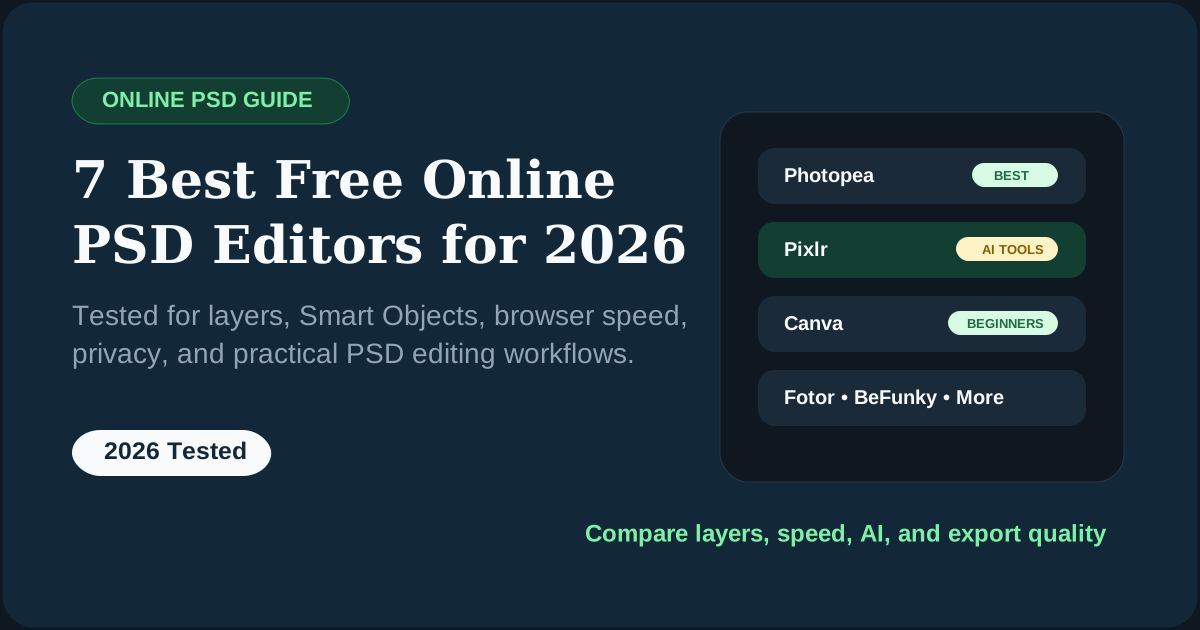
Finding the 7 Best Free Online PSD Editors for 2026 is essential if you want to avoid Adobe Photoshop's high subscription costs. If you are looking for how to best edit PSD in browser or what is best Photoshop web version for free, we evaluated a range of leading tools using a real-world layered PSD file. Our evaluation shows exactly which ones preserve Smart Objects and layer effects reliably.
Why Most PSD Editor Comparisons Get It Wrong
Most "best free PSD editor" lists on the internet do the same thing: copy each tool's marketing page and slap a star rating on top. They've never actually opened a real layered PSD file in each editor, and they certainly haven't tested what happens when you have 80+ layers, clipping masks, and Smart Objects.
We did something different.
We took a real-world PSD — a multi-layer product mockup with Smart Objects, adjustment layers, nested groups, and blend modes — and opened it in all seven editors. We noted exactly what broke, what preserved, and what was flat-out missing. The results were eye-opening.
In 2026, you genuinely don't need to pay Adobe's $22.99/month for basic-to-intermediate PSD work. But you do need to pick the right free tool for your specific job. That's what this guide is for.
To make this page genuinely useful, we did not just compare landing pages or pricing tables. We tested the same layered PSD in every editor and checked what happened to the parts that usually break first in real projects.
We judged each editor based on how it performs across six critical areas. If you have been wondering how to evaluate professional browser tools, here is our framework for how to open psd file without photoshop: free viewers analysis:
What mattered most in testing
The biggest difference between these tools was not filters or templates. It was whether they could keep a layered PSD usable after import. That is the line between a real PSD editor and a simple browser image tool.
Quick Verdict
Quick Summary
- Best Overall: Photopea — Closest thing to Photoshop in a browser. Handles layers, masks, Smart Objects, and Photoshop-style shortcuts.
- Best for AI Speed: Pixlr — Fast background removal, generative tools, and simple retouching.
- Best for Beginners: Canva — PSD import + drag-and-drop simplicity. Best if you're making social media content, not complex composites.
- Best for Artists: Sumopaint — Extensive brush library and a painting-first workflow.
- Best for Conversion Only: Online-Convert — No editor needed. Upload a PSD and export a shareable file quickly.
Who Should Use Which Editor? (Decide in 30 Seconds)
Before diving into the full reviews, use this quick-match table to find your editor based on what you're actually trying to do.
| Your Situation | Best Editor | Why |
|---|---|---|
| I know Photoshop and need full layer control | Photopea | 1:1 Photoshop interface, same shortcuts |
| I need to remove a background fast | Pixlr | AI removal in one click, free |
| I'm a non-designer making social posts | Canva | Easiest to use, best templates |
| I'm a digital painter or illustrator | Sumopaint | Best brush engine of all browser tools |
| I need marketing banners from a PSD asset | Fotor | Huge template library, AI enhancements |
| I just need to see what's inside a PSD | Online-Convert | Instant conversion, no editing needed |
| I'm a student learning photo editing basics | BeFunky | Guided tools, friendly interface |
Full Feature Comparison Table
Here's how all seven editors compare on the features that actually matter for real PSD work.
| Editor | Layers | PSD Save | AI Tools | Mobile | Cost |
|---|---|---|---|---|---|
| Photopea | Excellent | Yes | Basic | Limited | Free / $5 |
| Pixlr E | Very good | Yes | High | Good | Free / Credits |
| Fotor | Good | No | High | Good | Free / $8.99 |
| Sumopaint | Good | Basic | Low | Limited | Free / $4 |
| Canva | Basic | No | Low | Excellent | Free / $10 |
| BeFunky | Basic | No | Low | Good | Free / $6.99 |
| Online-Convert | View only | No | None | Yes | Free / Premium |
What Usually Breaks When You Open a PSD Online
This is also why many people searching for a free online PSD editor are better served by reading how to open a PSD without Photoshop first. The right workflow often depends on whether you want to edit, inspect, convert, or extract.
.ttf or .otf files for perfect font matching.By following these performance tips, we found that even modest laptops can handle complex PSD work in a browser environment.
Photopea — Best Overall Free PSD Editor
If you've been googling "free Photoshop in browser," Photopea is the answer. It's a web-based raster and vector editor built by Ivan Kutskir that mirrors Adobe Photoshop closely enough that most Photoshop users can start immediately.
It supports layers, layer masks, adjustment layers, Smart Objects, blend modes, and Photoshop-style shortcuts without any installation. If your main need is opening a real layered PSD and keeping its structure usable, this is still the strongest online option.
True Photoshop Shortcuts
Ctrl+J, Ctrl+Alt+Z, Ctrl+Shift+E and other familiar shortcuts work natively.
Wide Format Support
PSD, AI, XCF, Sketch, XD, PDF, CDR, INDD, and more.
Exports Back to PSD
Useful when you need to keep a layered workflow instead of flattening the file.
Browser Privacy
Files are processed in-browser after the app loads, which is better for sensitive work.
- Best PSD fidelity of any browser editor in this list
- Smart Objects, masks, groups, and blend modes are handled well
- Comfortable for existing Photoshop users
- Works well for quick client revisions without installing software
- Ads can be distracting in the free version
- Very large files can slow down depending on RAM
- No real-time collaboration
- 3D Photoshop features are not supported
Pixlr — One of the Best for AI-Powered Editing
Pixlr has repositioned itself as an AI-first browser editor. It is highly effective for quick background removal, social content, and fast AI-assisted edits. It comes in two versions: Pixlr E for fuller editing with layers, and Pixlr X for quick adjustments and simple design work.
Pixlr E vs. Pixlr X
Pixlr E is the one to use for layered PSD work and more Photoshop-style edits. Pixlr X is better for quick crops, resizing, template work, and simple cleanup.
For users who care more about speed than perfect PSD fidelity, Pixlr is often the better day-to-day choice. It is simpler than Photopea, and its AI background tools are stronger for quick output.
- Excellent AI background removal and fast retouching tools
- Cleaner and easier interface for beginners
- Good for social graphics and quick deliverables
- PSD import is decent for moderate files
- Complex Smart Objects may flatten
- Free version has credit and save limits
- Layer rendering may differ from Photoshop in edge cases
- Not ideal for preserving a complex PSD end-to-end
Sumopaint — Great for Digital Artists
Sumopaint is one of the oldest browser editors still around, and it makes more sense as a painting tool than as a Photoshop replacement. If your main work is illustration, digital brushes, textures, and sketching, it feels more purposeful than most generic online editors.
- Strong brush feel for a browser tool
- Good for concept work and digital art practice
- Symmetry and painting tools are genuinely useful
- Simple PSDs can be opened without much trouble
- Dated interface compared to Photopea and Pixlr
- Not suitable for complex PSD structures
- Advanced export options require Pro
- Large canvases can feel sluggish
Fotor — Best for Template-Based Design
Fotor is useful when the PSD is only the starting asset and the real job is making banners, posters, or social media graphics quickly. It is much less about PSD precision and much more about speed, polish, and output.
- Large template library for marketing work
- Good one-click visual enhancement tools
- Easy for non-designers to get attractive output fast
- Useful if the PSD is already fairly flat
- Complex PSDs get flattened heavily
- No layered PSD export
- Best templates and features push toward Pro
- Weak for precision retouching or compositing
Canva — Best for Social Media Teams
Canva is useful when designers hand off assets to marketers, assistants, or team members who do not need Photoshop-level control. Its PSD import is functional for simple files, but the real value is collaboration and speed after import.
- Best collaborative workflow of any tool in this list
- Excellent mobile app and team usability
- Strong brand kit and publishing workflow
- Ideal for social posts and basic campaign assets
- Complex Photoshop effects do not survive well
- Weak for pixel-level editing and masking
- No layered PSD export
- Not the right choice for detailed compositing
BeFunky — Most Beginner-Friendly
BeFunky sits between a casual photo app and a browser design editor. If the user is new to image editing and finds Photopea intimidating, this is the easiest tool on the list to learn quickly.
- Very approachable interface
- Good for collages and quick social visuals
- Text tools are easy for non-designers
- Simple PSDs can be opened for basic adjustments
- Weak masking and advanced selection tools
- Complex PSDs will flatten heavily
- Many features are locked behind Plus
- No serious layered PSD workflow
Online-Convert — Best for Quick Conversion
Sometimes you do not need a PSD editor at all. You just need the file converted and delivered in a shareable format. Online-Convert does that well, and that is exactly where it fits.
- Fast export to JPG, PNG, PDF, TIFF, and WebP
- No account required for simple use
- Good if the PSD is just an input file for conversion
- Offers a few useful output settings like DPI and quality
- Not an editor, so no layer control
- Files are uploaded to a server
- Not suitable for confidential client work
- Free queue and file size limits still apply
How to Choose the Right Editor: A Step-by-Step Guide
With all the options above, here's the fastest way to find your match.
What's your goal?
Are you doing professional retouching with complex layers? → Photopea. Quick social media post? → Canva or Pixlr X. Digital painting from scratch? → Sumopaint. Just need a JPG from a PSD? → Online-Convert.
How complex is your PSD?
Does your file have Smart Objects, adjustment layers, or clipping masks? Only Photopea handles these reliably. Simple flat layers? Any of the top 5 will work fine.
What's your Photoshop skill level?
Already know Photoshop shortcuts? You'll feel at home in Photopea immediately. Complete beginner? Start with Fotor or BeFunky — their guided tools will get you results faster.
Do you need AI features?
Background removal, generative fill, or AI enhancement? Pixlr and Fotor lead the pack for AI tools in 2026. Photopea has basic AI features but they're not its strength.
Is file privacy important?
Photopea processes everything locally in your browser — your files never leave your computer. All other tools upload your files to their servers. For confidential client work, this matters.
Video Tutorials: Master These Tools Faster
Best Video Guides for 2026
Hand-picked tutorials for Photopea and Pixlr — the two editors worth mastering.
Search: 'Photopea 2026 beginner full guide' — Look for tutorials that cover layers, masks, and Smart Objects. These 3 skills unlock 80% of Photopea's power.
Search: 'Pixlr AI background removal 2026' — Focus on videos that show the generative fill workflow, not just background removal.
Search: 'Canva PSD import tutorial' — Look for videos that show import results with real layered files, not just marketing demos.
Frequently Asked Questions
Is Photopea really 100% free?+
Yes. Every single feature in Photopea is available for free — including Smart Objects, Content-Aware Fill, Pen Tool, and all layer functions. The free version shows ads. The premium plan (starting at $5/month) removes ads and adds AI credits. There are no paywalled features — just paywalled comfort.
Can online PSD editors handle very large or complex files?+
It depends on the editor and your hardware. Photopea handles large files best among browser tools, but performance depends on your computer's RAM. Files over 500MB can slow it down significantly. Before uploading heavy files to any browser editor, it's worth reducing your PSD file size first. Fotor, Canva, and BeFunky are not designed for large, complex PSDs — they'll either fail to load or flatten everything.
Is it safe to upload my PSD files to a browser editor?+
This depends on the tool. Photopea is the safest option — it processes all files locally in your browser. Your PSD never leaves your computer. Tools like Pixlr, Fotor, Canva, and Online-Convert upload your files to their servers for processing. For confidential work (client PSDs, unreleased designs, commercially sensitive files), stick to Photopea only.
Which free online PSD editor is closest to Adobe Photoshop?+
Photopea, without question. It mirrors the Photoshop interface almost exactly — same panel layout, same tool locations, same keyboard shortcuts. If you've used Photoshop, you can open Photopea and start working immediately. The gap in 2026 is mostly in: AI-powered tools (Photoshop's Generative Fill is more advanced), 3D layer support (Photopea doesn't have it), and plugin support (Photopea doesn't support .8bf Photoshop plugins).
Can I edit PSD files on a Chromebook or iPad?+
Yes. Every tool on this list works in a browser, which means any device with Chrome, Safari, or Firefox can run them. Photopea works on Chromebooks with full functionality. Canva and Pixlr have the best mobile/iPad experiences with touch-optimized interfaces. Photopea on an iPad works but is harder to use without keyboard shortcuts.
Do any of these tools support Photoshop plugins?+
None of the tools support standard Photoshop plugins (.8bf format). However, Photopea supports its own library of Scripts and Actions that replicate many popular plugin functions. You can record and run Actions in Photopea just like in Photoshop, which covers a large portion of plugin use cases for most workflows.
What free online editor works best for removing backgrounds from PSD files?+
Pixlr has the best free AI background removal of any browser editor in 2026. One click, clean edges, fast processing — and you don't need to manually open a specific layer to use it. Fotor also has a good background removal tool. If you need to remove a background from a specific layer inside a complex PSD, open the file in Photopea first, isolate the layer, then use Pixlr for the removal.
Can I use these editors offline?+
Photopea requires an internet connection to load, but once loaded, it can function offline for basic editing (no AI features). All other editors on this list require an active internet connection at all times. For fully offline PSD editing, you'd need a desktop application like GIMP (free, open-source) or Affinity Photo (now free via Canva — requires a free Canva account).
The Future of PSD Editing: AI vs. Precision
Our testing suggests that the most successful designers in 2026 will use both. Use Photopea to prepare the layers and ensure composition accuracy, then hop into Pixlr or Canva to apply final AI-driven stylistic touches for social delivery.
The Right Tool for the Right Job
Here's the honest summary after testing all seven editors:
The best free online PSD editor isn't the one with the most features — it's the one that fits your specific workflow. Use this guide to pick the right one, and stop paying for software you don't need.
If you also need help opening PSDs, converting them, or extracting layers, see How to Open a PSD Without Photoshop, How to Convert PSD to JPG or PNG, and How to Extract Layers and Images From PSD.
Need PSD Help?
Your time is worth more than solving pixel errors. Hire a professional editor to handle the technical work while you focus on your business.
Related Guides
About the Author
Devla Sarika Singh
Image Editor | PSD Mockup Designer | Photoshop Expert
I am a professional image editor specializing in Photoshop, custom PSD mockups, and high-quality image editing. I help businesses and creators convert images into editable mockups, with services like background removal, bulk mockups, and product image editing.