How to extract image assets and layers from a PSD file is still one of the most common developer handoff problems, especially on legacy client projects where the design never made it into Figma. PSD is a designer's working format, not a web developer's delivery format, so the real work starts when you need to turn that layered file into usable assets, CSS values, fonts, spacing, and build-ready structure.
This guide is built specifically for web developers, frontend freelancers, and agencies who receive PSD files and need to move fast. It covers the fastest extraction methods, when to use each one, how to export retina-ready assets, how to avoid exporting things that should really be coded, and which workflows make PSD-to-HTML handoff much less painful.
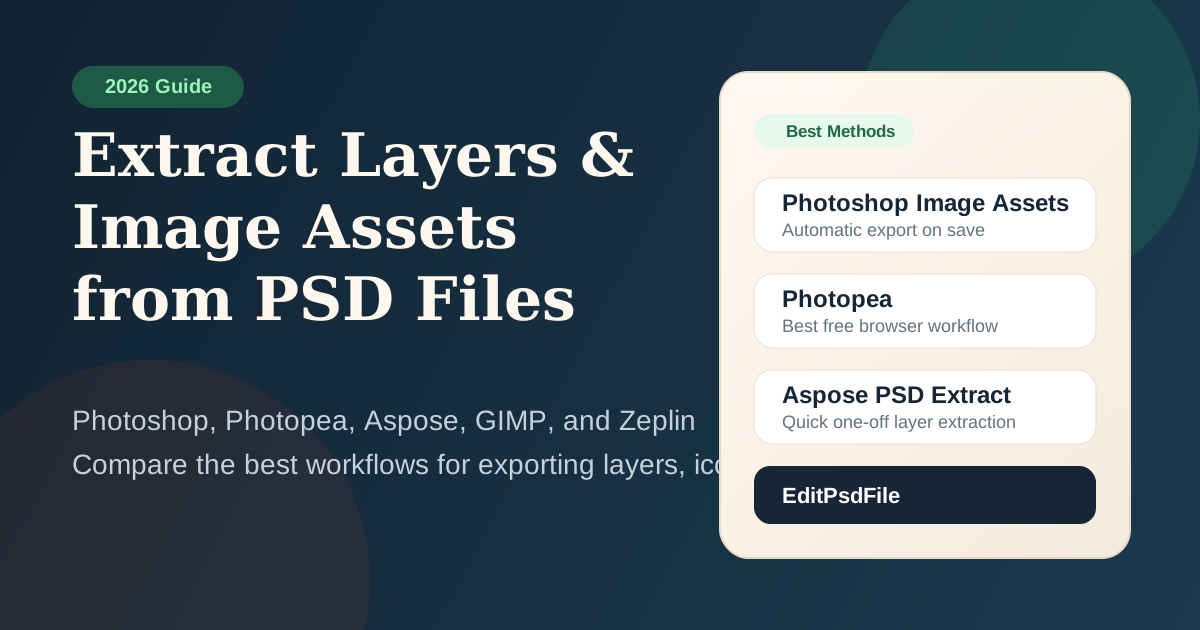
Why Developers Need to Extract PSD Assets (PSD Extraction Tips)
As a web developer, receiving a PSD from a designer is still a real-world problem, especially in legacy client work, theme customization, marketplace templates, and agencies that still have old Photoshop-based design archives. PSD is not the final delivery format for development. To build from it, you usually need to extract:
- Image assets such as icons, photos, logos, backgrounds, shadows, decorative shapes, and hero graphics
- CSS values such as exact hex colors, font sizes, border radius, shadows, letter spacing, and gradients
- Typography details such as font families, weights, line heights, and text alignment
- Spacing and dimensions so you can rebuild layout structure in HTML and CSS
- Layer structure to understand which parts are real assets and which parts should be coded
The reason this becomes painful is simple: a complex PSD may contain 50 to 200 layers, masks, hidden groups, Smart Objects, and effects that are obvious to a designer but unclear to a developer seeing the file for the first time.
The biggest mistake is assuming every visible thing inside the PSD should be exported as an image. That is wrong. Many PSD elements should be rebuilt as CSS or SVG, not saved as PNG.
Developer Reality
The fastest developer is not the one who exports the most layers. It is the one who knows which layers should become image files, which values should become CSS, and which parts of the PSD should be ignored entirely.
If you need supporting context first, these related guides are the most useful before you go deeper:
What You'll Need Before Starting
Depending on the method you choose, you may need one of the following:
| Tool | Cost | Platform | Best For |
|---|---|---|---|
| Adobe Photoshop | ⬤ Paid | Windows / Mac | Image Assets, Layers to Files, precise native export |
| Photopea | ⬤ Free | Browser | Free browser extraction without Photoshop |
| GIMP | ⬤ Free | Windows / Mac / Linux | Offline extraction and privacy-sensitive work |
| Aspose PSD Extract | ⬤ Free | Browser | Quick one-off layer extraction |
| Zeplin | ⬤ Free / Paid | Web / App | Developer handoff with specs and downloadable assets |
You do not need Photoshop to extract layers from a PSD. Photopea, GIMP, and Aspose all give you non-Adobe options depending on whether you care more about privacy, speed, or handoff detail.
Understanding PSD Layer Types
Before extracting, it helps to understand what kinds of layers you are looking at. Not all PSD layers should be exported the same way.
Rule of Thumb
Pixel layers become image files. Text layers become code. Shape layers often become SVG. Adjustment layers become styling decisions, not standalone exports.
Method Comparison Table
| Method | No Photoshop? | Batch Export | CSS / Specs | Privacy | Best For |
|---|---|---|---|---|---|
| Photoshop Image Assets | ❌ No | ✅ Excellent | ⚠️ Manual | ✅ Local | Automatic export by naming layers |
| Photoshop Layers to Files | ❌ No | ✅ Good | ❌ No | ✅ Local | One-time one-file-per-layer export |
| Photopea | ✅ Yes | ⚠️ Manual / script-based | ⚠️ Manual | ✅ In browser | Best free browser-based option |
| GIMP | ✅ Yes | ⚠️ Limited | ❌ No | ✅ Offline | Offline privacy-sensitive work |
| Aspose PSD Extract | ✅ Yes | ✅ Quick layer extraction | ❌ No | ⚠️ Server | Fast one-off layer separation |
| Zeplin | ✅ Yes | ✅ Good | ✅ Best | ⚠️ Cloud | Professional design-to-development handoff |
Best for: bulk asset extraction, automating repetitive exports, and retina-ready assets
This is still the strongest extraction workflow if you already have Photoshop. In our testing on complex 200-layer files, Adobe's Image Assets generator system remains the gold standard for automatic asset generation directly from layer names.
Step 1: Enable Image Assets in Photoshop
- Open the PSD in Photoshop.
- Go to File → Generate → Image Assets.
- Once enabled, Photoshop starts watching layer names for export instructions.
Step 2: Name Your Layers for Export
The core concept is simple: rename a layer with a filename and extension, and Photoshop generates the matching file.
logo.png
hero-banner.jpg
icon-close.svg
Advanced Naming Syntax
Set JPG quality:
hero-image.jpg80%
banner.jpg100%
Set output size:
300x200 button.png
50% small-logo.png
200% hero@2x.png
Export to subfolders:
icons/close.png
images/hero.jpg
Export multiple sizes from one layer:
icon.png, 200% icon@2x.png, 300% icon@3x.png
What Makes This Powerful
The reason developers like this method is not just speed. It is repeatability. When the designer changes the PSD later, you do not need to repeat the export workflow manually. You save the document, and the assets update again.
Best Workflow Tip
If a designer is handing off a PSD for web development, ask them to name export-ready layers properly before sharing the file. That one step can save hours of manual export work later.
Best for: exporting a few specific layers with precise control
If Image Assets is the automation-first method, this is the control-first method.
Option A: Layers to Files
This is the fastest Photoshop method when you need each visible layer exported as a separate file.
- Open your PSD.
- Go to File → Export → Layers to Files.
- Choose the destination folder.
- Choose the format, such as PNG or JPG.
- Run the export.
This is useful when the task is simple: "I need one file per layer, right now."
Option B: Export As
Use this when you only need a few layers and want manual control over size, quality, and format.
- Select the layer or group you want.
- Right-click and choose Export As, or use Photoshop's export menu.
- Choose the format: PNG, JPG, GIF, or SVG depending on the layer type.
- Set scaling, dimensions, and quality.
- Export the file.
Quick Export
If you just need a quick transparent export:
- Select the layer.
- Use Quick Export as PNG.
- Save the file immediately.
This is not the most flexible workflow, but it is efficient when you know exactly what you need.
Best for: developers without Photoshop, quick browser extraction, and manual layer export
Photopea is the best free browser-based option for extracting layers from PSD files when Photoshop is not available. It opens layered PSDs in a Photoshop-like interface and gives you enough control to inspect, hide, isolate, and export layers manually.
How to Extract a Single Layer in Photopea
- Go to photopea.com.
- Open the PSD file in your browser.
- In the Layers panel, select the layer you want.
- Hide other layers using the eye icons if needed.
- Go to File → Export As.
- Choose PNG, JPG, SVG, or another suitable format.
- Save the exported result.
How to Export Multiple Layers
Photopea also offers a layer export script workflow:
- Open the PSD.
- Go to File → Scripts → Export Layers if available for your file.
- Choose the output format.
- Download the exported results.
Why Developers Like Photopea
It solves the most common PSD problem: "I do not have Photoshop, but I still need to see the layers and get the assets out."
It is also one of the better options for confidential files because it runs in the browser rather than relying on a normal upload-process-download server model.
Best for: privacy-sensitive work, offline development workflows, and Linux users
GIMP is not the cleanest PSD extraction workflow, but it is still useful as a fully offline fallback. If you cannot upload the file to any browser tool and do not have Photoshop, GIMP is often the next best choice.
Export a Single Layer in GIMP
- Open the PSD in GIMP.
- Use the Layers panel to isolate the layer or group you want.
- Hide other layers if needed.
- Use File → Export As.
- Save the result as PNG or JPG.
Batch Export in GIMP
GIMP can support more technical workflows through scripting, but for many developers this is only worth it if privacy matters more than convenience.
The tradeoff is simple:
- better privacy
- less convenience
- less reliable fidelity for complex Photoshop-specific effects
Best for: quick extraction without installing software
Aspose PSD Extract is useful when the job is simple: upload the file, separate the layers, and download the results. It is one of the fastest ways to extract PSD layers online when the file is not confidential.
How to Use It
- Open the Aspose PSD Extract page.
- Upload the PSD or PSB file.
- Let the tool process the layers.
- Preview or download the extracted results.
- Save individual items or the whole archive.
What Makes It Useful
It removes the manual hide-show-export loop. That is its main value.
What Makes It Limited
It does not solve developer handoff. It does not explain spacing, typography, CSS values, or which pieces should be coded instead of exported.
Privacy note: Aspose's tool pages state that uploaded files and generated links are stored for a limited time. Use it for non-sensitive files, not confidential client PSDs.
Best for: team workflows, developer handoff, CSS values, colors, fonts, spacing, and downloadable assets
Zeplin is not just a PSD extractor. It is a professional developer handoff tool. We found that for large-scale projects, Zeplin saves significantly more time than manual extraction by providing a centralized asset hub.
If your real goal is to turn a PSD into working frontend code, Zeplin is often more valuable than manually exporting dozens of layers. It gives developers a cleaner handoff experience by focusing on:
- downloadable assets
- spacing measurements
- color values
- font details
- CSS-like specs
- inspectable design structure
When Zeplin Is Better Than Manual Extraction
Zeplin is the better choice when:
- the design team already uses a handoff workflow
- you need implementation values, not just image files
- you want fewer guesses about spacing and typography
- your frontend work depends on consistency, not screenshots
Developer Tip
If a designer can publish the design to Zeplin, ask for that instead of asking for a raw PSD alone. It usually saves more developer time than any export script.
How to Extract CSS Values, Colors & Fonts
This is one of the most important parts of PSD handoff, and also one of the most misunderstood.
You do not just need assets. You need implementation values.
Using Photoshop or Photopea
Photoshop Layer Styles → CSS Equivalent
box-shadowborderlinear-gradient()opacityborder-radiusbackground-colorBest Practice
Always treat PSD-generated values as a reference, not as production-ready code. Auto-generated CSS is usually too literal. Good frontend code translates the design into a maintainable layout system.
PNG vs JPG vs SVG for Web
Choosing the wrong format creates either quality problems or unnecessary file weight.
Retina / HiDPI Export
Modern devices often need more than one export size.
Standard practice:
| File | Use |
|---|---|
asset.png | 1x standard screen |
asset@2x.png | Retina / high-density |
asset@3x.png | Very high-density mobile screens |
Generator Naming for Multiple Sizes
icon.png, 200% icon@2x.png, 300% icon@3x.png
This is one of the biggest advantages of Photoshop Image Assets. It solves the multi-size export problem in one layer name.
Practical Recommendation
For icons and logos, SVG is often a better solution than managing PNGs at 1x, 2x, and 3x forever.
Naming Conventions & Extraction Tips
Consistent naming matters more than people think. Bad filenames create confusion during development, deployment, and maintenance.
hero-banner.jpg
hero-banner@2x.jpg
icon-cart.svg
icon-cart-white.svg
btn-primary-hover.png
logo-footer-dark.svg

Layer 25.png
button2-final-new.png
IMG_export.png
💡 If the PSD has bad layer names, cleaning them first may save more time than trying to extract immediately.
Developer Handoff Checklist
If the PSD is messy, unnamed, or impossible to interpret, you likely need a cleanup step first.
Need Help Cleaning a Messy PSD?
If the PSD is badly organized, missing fonts, or structured in a way that wastes developer time, we can clean the file, extract the right assets, and prepare a proper developer handoff workflow.
Recommended YouTube Tutorials
Recommended Tutorials
These search links are useful if you want a visual walkthrough for PSD asset extraction and handoff workflows.
Best for automatic export by layer naming
Best free browser-based workflow
Best for CSS values, spacing, and developer handoff
Best for end-to-end PSD implementation workflow
FAQs
Do I need Photoshop to extract assets from a PSD?+
No. You can use Photopea for free browser-based extraction, Aspose PSD Extract for quick online separation, or GIMP for a fully offline workflow.
What is the fastest way to export all PSD layers at once?+
If you have Photoshop, Image Assets is the fastest repeatable workflow because it can auto-export based on layer names. For one-time extraction, Photoshop Layers to Files or Aspose PSD Extract can be faster depending on your goal.
How do I get exact color hex codes and font values from a PSD?+
In Photoshop or Photopea, inspect the layer directly using text and color tools. For a full handoff-oriented workflow with values and downloadable assets together, Zeplin is more efficient.
How do I export icons as SVG from a PSD?+
Only true vector-capable layers should be exported as SVG. If the icon is rasterized, it cannot become a true SVG without redrawing or tracing it.
Should I trust generated CSS from design tools?+
Use it as a reference, not production-ready code. Generated CSS helps you read values quickly, but responsive frontend code still needs to be written properly by hand.
What should I do if the PSD is too messy to hand off cleanly?+
Then the problem is not just extraction. The PSD likely needs cleanup, better grouping, relabeling, and a proper asset plan before development starts.
How to extract image assets from PSD on Mac?+
If you don't have Photoshop on your Mac, use Photopea (browser-based) or GIMP (open source). Both handle PSD layer extraction perfectly without requiring an active Adobe subscription or specific Windows/Mac software installation.
Can I extract layers from a PSD file online for free?+
Yes. Photopea is the most reliable free online tool for this. It opens the PSD in your browser, lets you select any layer or group, and allows you to right-click and choose 'Export as PNG' or 'SVG' individually.
What is the best image format for web asset extraction?+
Use PNG for assets that require transparency (logos, icons), JPG for photographic images with no transparency (to save file size), and SVG only for true vector-based layers that should remain sharp at any scale.
How to extract all layers from a PSD file as separate images?+
In Photoshop, use File → Scripts → Export Layers to Files. This will automatically save every layer in your document as a separate file. In Photopea, you can use the File → Export Layers option to achieve a similar result.
Does asset extraction work for Smart Objects?+
Yes. In Photoshop, if you have Generator enabled, you must name the Smart Object layer with an extension (e.g., my-graphic.png). In Photopea, you can double-click a Smart Object, edit it in a new tab, and export its contents directly.
Conclusion
Extracting image assets from PSD files does not have to be painful, but it does require choosing the right workflow for the job.
If you already have Photoshop, use Image Assets for automation or Layers to Files / Export for direct manual control. If you do not have Photoshop, use Photopea. If you want the fastest browser-based one-off extraction and the file is not sensitive, use Aspose PSD Extract. If your real goal is frontend implementation rather than image dumping, Zeplin is often the most valuable workflow of all.
The most important mindset shift is this: do not export everything just because it exists in the PSD. Good developers separate image assets, design specs, and code-first elements before they start.
These related guides are the best next reads:
About the Author

Devla Sarika Singh
Image Editor | PSD Mockup Designer | Photoshop Expert
I am a professional image editor specializing in Photoshop, custom PSD mockups, and high-quality image editing. I help businesses and creators convert images into editable mockups, with services like background removal, bulk mockups, and product image editing.