Your PSD file just stopped opening. Hours of work, a client deadline tomorrow, and Photoshop throwing a corrupted file error. This is one of the most stressful moments in any designer's workflow — but before you panic, know this: most corrupted PSD files are fully recoverable without paid tools, and most recoveries take less than 10 minutes when you follow the right steps. We tested every method below on real broken PSD files. This guide walks through all 7 proven recovery methods, ordered from quickest to most involved, starting with the free built-in tricks that work 80% of the time.
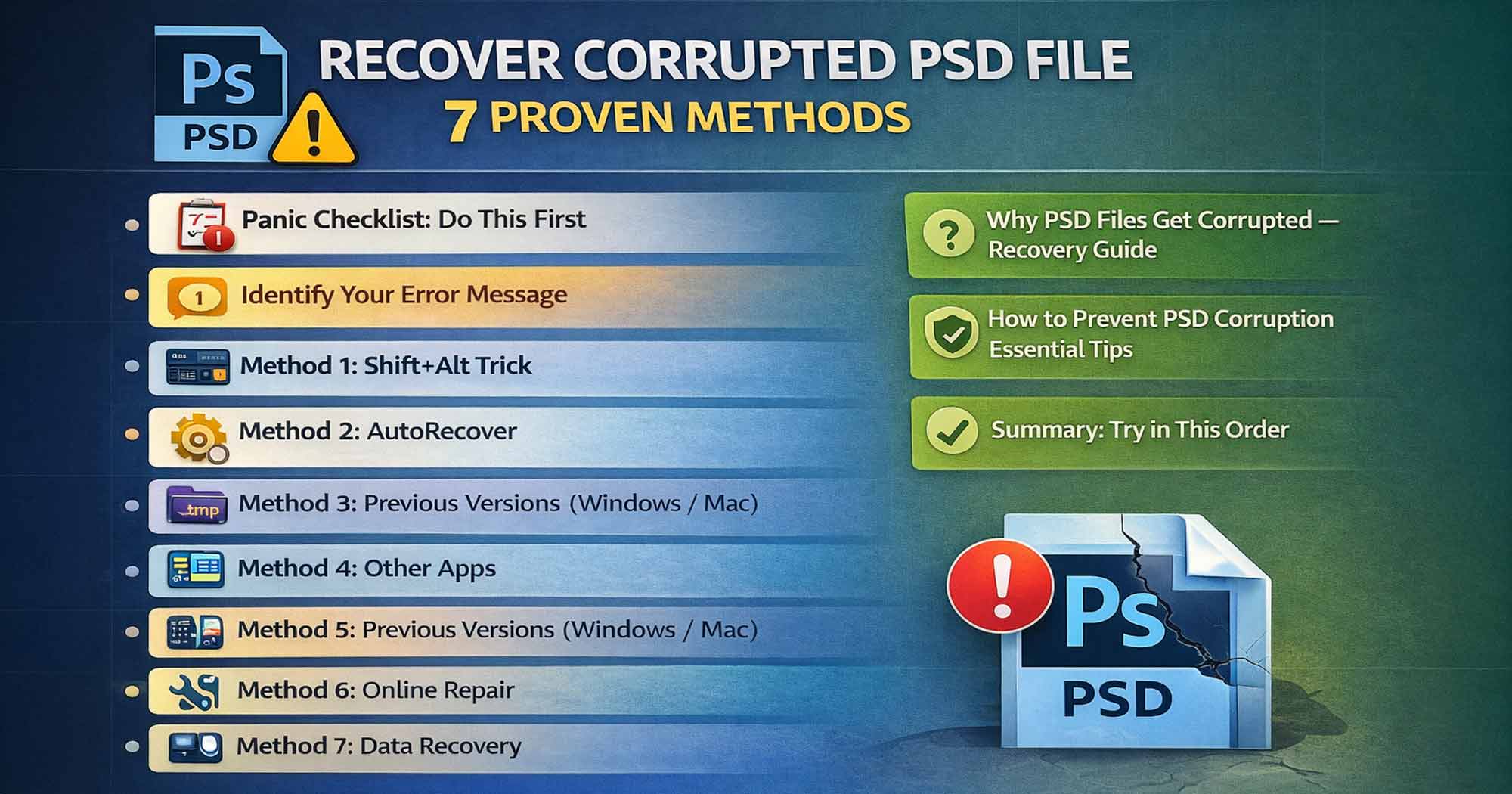
The Panic Checklist: Do This First
Why Do PSD Files Get Corrupted?
PSD corruption doesn't happen randomly. It almost always has a traceable cause. Understanding the cause tells you which recovery method has the best chance of working. For context on what a PSD file actually contains, see our What is a PSD File guide.
Identify Your Error Message
The exact error you're seeing tells you a lot about the type of corruption. Match your error below:
"The document [filename].psd could not be opened""Could not complete your request because it is not a valid Photoshop document.""This file contains one or more layers that appear to be corrupt""This document contains Adobe Photoshop data which appears to be damaged""Photoshop cannot open files in the Adobe Photoshop file format""Could not complete your request because the file-format module cannot parse the file.""Unknown or invalid JPEG marker type is found."For the "not a valid Photoshop document" error specifically, see our dedicated fix guide for that error.
If Photoshop Gives You a Choice
If Photoshop shows a dialog with two options — "Keep Layers Editable" vs "Flatten" — the file is partially recoverable. Choose Flatten to at least get a flat image back, then try Method 1 to recover layers.
Method 1: The Shift+Alt Trick — Open as Flat Composite
This is Adobe's own official trick and should be your very first attempt. When Maximize Compatibility is enabled (which it is by default), Photoshop saves a hidden flattened composite of the entire document inside the PSD. Even if all the layers are corrupted, this hidden composite is often intact.
Holding Shift+Alt (Win) or Shift+Option (Mac) while opening forces Photoshop to load this flat composite instead of trying to parse the damaged layer data.
Copy the corrupted PSD
Copy the corrupted PSD to your Desktop or another folder as a backup first.
Navigate to the File
In Photoshop, go to File → Open and navigate to the file.
Hold the Shortcut
Click the file once to select it, then hold Shift + Alt (Win) or Shift + Option (Mac).
Force Open
While still holding those keys, click Open.
Confirm the Dialog
A dialog may appear asking how to handle damaged layer data — click OK or Flatten.
Save Immediately
If the image opens — even flattened — immediately Save As to a new file name and location.
Important
This only works if "Maximize Compatibility" was turned ON when the file was saved. If it was set to "Never," no composite exists to fall back on. Move to Method 2.
Method 2: AutoRecover — Find Photoshop's Auto-Saved Version
Photoshop has an AutoRecover feature that saves a backup copy of your work at a set interval (every 5, 10, 15 minutes — you choose). If AutoRecover was enabled, there may be a recent backup sitting in a hidden folder right now, untouched by the corruption.
Enable AutoRecover (for future protection):
Open Preferences
Go to Edit → Preferences → File Handling (Win) or Photoshop → Preferences → File Handling (Mac).
Enable AutoRecover
Check "Automatically Save Recovery Information Every X Minutes" — set to 5 or 10 minutes.
Find Your AutoRecover Files:
Navigate to the AutoRecover Folder
Navigate to the folder using the paths above for your OS.
Look for .psb Files
Look for .psb files matching your project name and recent timestamps. They may also appear with a .tmp extension.
Copy to Desktop
Copy the file to your Desktop, then open it in Photoshop.
Save As New File
If it opens, File → Save As immediately to save it as a fresh .psd in a safe location.
Note
AutoRecover files are deleted automatically when Photoshop closes normally after a successful save. They remain only if Photoshop crashed before saving.
Method 3: Temp Files — The Hidden .tmp Backup
While you work in Photoshop, it continuously writes temporary files to your system's Temp folder. These files survive a crash because they're written independently of the main save operation. The catch: they're named with random numbers and have a .tmp extension. You'll need to find and rename them.
Find Your Temp Files:
Navigate to the Temp Folder
Navigate to the Temp folder using the paths above for your OS.
Sort by Date Modified
Sort files by Date Modified to find large files created around the time of the crash.
Copy to Desktop
Copy a suspected file to your Desktop.
Rename to .psd
Rename the file: change the extension from .tmp to .psd.
Try to Open
Try to open it in Photoshop. If it doesn't work, rename to .psb instead and try again.
Test Multiple Files
If the first doesn't open, try other large temp files from around the same time period.
Warning
Temp files are deleted when you restart your computer. If your PC rebooted after the crash, these files may already be gone. Always try this method before rebooting.
Method 4: Restore Previous Versions (Windows / Mac)
Both Windows and macOS have built-in file versioning. Windows uses File History and Previous Versions. Mac uses Time Machine. If these were set up before the corruption occurred, you can roll back to an earlier healthy version of the file.
Windows — Restore Previous Versions:
Right-Click the File
Right-click the corrupted PSD file in File Explorer.
Select Restore Previous Versions
Select "Restore previous versions" from the context menu.
Choose a Version
A list of versions with timestamps appears — select one saved before the corruption.
Restore
Click "Restore" — or use "Restore To" to save to a different location without overwriting.
Verify in Photoshop
Open the restored file in Photoshop and verify it's intact before proceeding.
Mac — Time Machine:
Connect Time Machine Drive
Connect the external drive used for Time Machine backups.
Open Time Machine
Open Time Machine from the menu bar or System Preferences.
Navigate to the Folder
Navigate to the folder where the PSD was stored.
Travel Back in Time
Use the timeline on the right to go back to before the corruption occurred.
Restore the File
Select the healthy PSD version and click "Restore".
Note
This only works if you had File History or Time Machine configured before the incident. If not set up — start now: Control Panel → File History (Win) or System Preferences → Time Machine (Mac).
Method 5: Try Opening in Another App
Different applications parse the PSD format differently. If Photoshop refuses to open the file, another app may successfully read it — especially if only certain layer types are corrupted while the base image data is intact. For a full list, see our best free Photoshop alternatives guide.
| App | Platform | Cost | What it can recover |
|---|---|---|---|
| Photopea | Browser (any) | Free | Layers, groups, text layers, masks — often opens files Photoshop refuses |
| GIMP | Win / Mac / Linux | Free | Flat composite or partial layer data from corrupted PSDs |
| Adobe Illustrator | Win / Mac | Subscription | Can sometimes open PSDs where Photoshop fails entirely |
| Affinity Photo | Win / Mac | ~$70 | Reads PSD format with layer support — worth trying if you own it |
| Krita | Win / Mac / Linux | Free | Opens PSD with limited layer support — may work on partial corruption |
Pro Tip: Try Photopea First
Photopea at photopea.com is usually the best free alternative to try first. It uses its own PSD parser which often successfully reads files that Photoshop can't. Go to File → Open, load the corrupted PSD, then export each layer separately if it opens.
Method 6: Online PSD Repair Services
Several online services specialize in analyzing and repairing corrupted PSD files. You upload your file, their algorithms attempt to extract recoverable data, and you get a preview before paying anything. Always use the free preview first.
Privacy Warning
Online tools require uploading your PSD to their servers. If your file contains confidential client work or proprietary designs, use desktop software (PSD Repair Kit, Recovery Toolbox) instead of web services.
Method 7: Data Recovery Software — Recover Deleted / Overwritten PSD
If the PSD was accidentally deleted, overwritten, or saved to a drive that failed — and none of the above methods help — disk-level data recovery software can scan your drive for deleted file remnants and reconstruct them.
Act Fast — SSD vs HDD Warning
The longer you wait after a file is deleted or a drive fails, the more likely the disk sectors get overwritten. On SSDs with TRIM enabled (default on Windows 10/11 and macOS), deleted file recovery is much less reliable than on HDDs. Act within minutes on SSDs for any chance of success.
Professional Recovery Tutorials
Watch these experts demonstrate the advanced recovery techniques for 2026:
PSD Recovery Masterclass
Visual guides for identifying and fixing corrupted file headers.
Search on YouTube →
Search on YouTube →
Search on YouTube →
Search on YouTube →
How to Prevent PSD Corruption Forever
The best recovery is the one you never need. Once you've been through a PSD corruption nightmare, these habits will make sure it never happens again:
Frequently Asked Questions
Can a corrupted PSD file always be recovered?+
Not always. Recovery success depends on the type and extent of corruption, whether Maximize Compatibility was enabled (which saves a composite backup inside the file), and whether AutoRecover or temp files are available. Partially corrupted files — where only some layers are damaged — have much higher recovery rates than files with completely broken file structure.
Is Photoshop's AutoRecover the same as Auto Save?+
No — and this is an important distinction. AutoRecover saves a crash-recovery copy in a temporary folder at your set interval. It is NOT the same as saving your file. It's only a safety net for crashes. When Photoshop closes normally after a successful save, AutoRecover files are deleted. Always manually save your work — AutoRecover is a backup for crashes, not a replacement for Ctrl+S.
My PSD opens but all layers show as corrupt — what do I do?+
When Photoshop detects corrupted layer data on open, it shows a dialog giving you the choice to "Keep Layers Editable" or "Flatten." Choose Flatten first to at least get the flat image. Then try reopening the original using the Shift+Alt trick (Method 1) to see if the composite is better. If some layers are important, try opening in Photopea — it may parse the damaged layers differently and recover more.
Can I recover a PSD that was overwritten by a newer save?+
If Windows File History or Mac Time Machine was running, you may be able to restore the previous version. Otherwise, check if cloud storage (Creative Cloud, Dropbox, Google Drive) has version history — most cloud services keep 30 days of file versions. If none of these apply, disk recovery software may find remnants of the overwritten file if you act quickly before new data overwrites those sectors.
Where exactly are Photoshop AutoRecover files stored?+
On Windows: C:\Users\YourUsername\AppData\Roaming\Adobe\Adobe Photoshop [version]\AutoRecover\ — note that AppData is a hidden folder; you need to enable "Show hidden files" in File Explorer options. On Mac: ~/Library/Application Support/Adobe/Adobe Photoshop [version]/AutoRecover/ — the Library folder is hidden by default; hold Option while clicking the Go menu in Finder to access it.
Are free PSD repair tools as good as paid ones?+
Free tools like Photopea and GIMP are great first attempts but are general-purpose PSD readers, not repair tools — they work when corruption is minor. Dedicated paid tools like PSD Repair Kit or Recovery Toolbox for Photoshop have algorithms specifically built to analyze PSD file structure, identify which data blocks are readable, and reconstruct the file. For serious corruption, paid tools have significantly higher recovery rates. Always use the free demo/preview first to verify recovery is possible before purchasing.
My file is a .tmp file from Photoshop — how do I open it?+
Copy the temp file to your Desktop first. Then rename it: change the extension from .tmp to .psd and try opening in Photoshop. If that fails, rename to .psb and try again. If Photoshop still can't open it, try Photopea or GIMP with the renamed file. Some temp files are intermediate working copies and may only contain a partial state of your project — but they're often better than nothing.
Conclusion
If your PSD file got corrupted, you are not out of options. Work through these methods in order — every one of them is worth trying before you give up or pay a repair service. Most cases are solved within the first three methods. Start free, go paid only if needed:
After Recovery — Set It Up Right
Enable AutoRecover set to 5 minutes. Start using incremental saves (v1, v2, v3). Set up a cloud backup. Turn on Windows File History or Mac Time Machine. A few minutes of setup now prevents days of lost work later.
Need PSD Help?
Your time is worth more than solving pixel errors. Hire a professional editor to handle the technical work while you focus on your business.
About the Author

Devla Sarika Singh
Image Editor | PSD Mockup Designer | Photoshop Expert
I am a professional image editor specializing in Photoshop, custom PSD mockups, and high-quality image editing. I help businesses and creators convert images into editable mockups, with services like background removal, bulk mockups, and product image editing.