If Photoshop just blocked your Save command with no warning, you hit the 2GB wall. This guide explains exactly what PSB is, when you actually need it, and what compatibility you give up when you make the switch.
You Hit the 2GB Wall. Now What?
You just spent hours on a complex Photoshop project — hundreds of layers, high-res Smart Objects, precise masks. You hit save. Photoshop refuses.
That's the 2GB wall. It's a hard architectural limit baked into the standard PSD format, and every serious designer eventually runs into it.
The fix is the PSB (Photoshop Big) format. But switching blindly without understanding what PSB costs you in compatibility can cause real problems downstream — especially if your file needs to go into InDesign, Lightroom, or be handed off to a client not running full Photoshop CC.
This guide covers everything: the technical reason both formats exist, exact compatibility by app, the hidden settings that trip people up, real file size benchmarks, and the scenarios where PSB is actually the wrong answer even for large files.
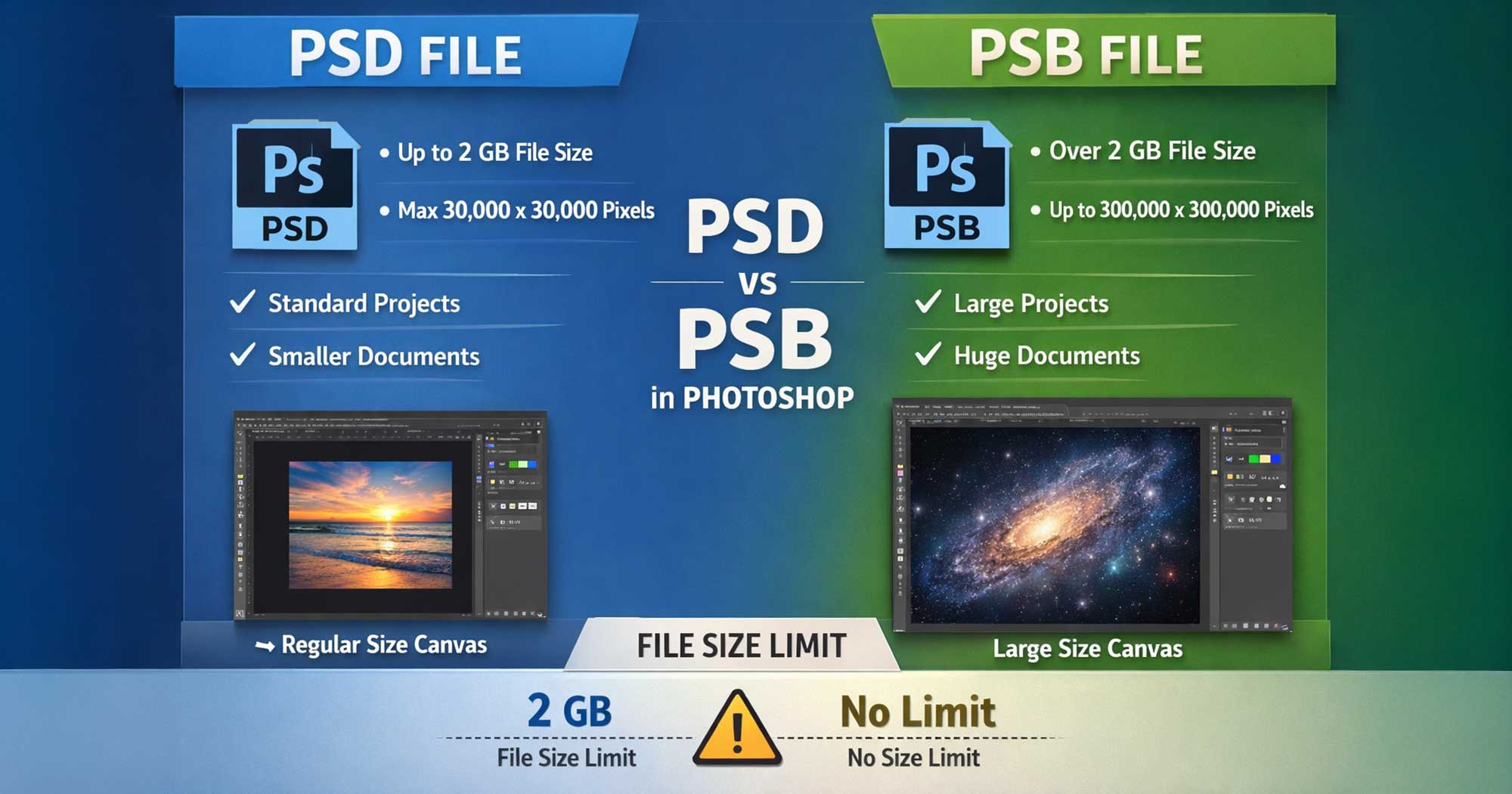
The Technical Architecture: Why Two Formats Exist
The difference between PSD and PSB is not a marketing decision — it is a direct result of how computers address data on disk.
PSD uses 32-bit file offsets. The maximum value a 32-bit integer can hold is 2,147,483,647 — roughly 2 gigabytes. Once Photoshop needs to write data beyond that position in the file, it cannot. The save fails.
PSB upgrades those offsets to 64-bit. A 64-bit integer can address up to 18 quintillion bytes — enough to store roughly 4 Exabytes. No hardware alive can fill that. In practical terms, PSB has no meaningful file size limit.
You can actually see this difference in the raw file binary. PSD files contain the version number 1 in their header; PSB files contain 2. That single byte is the only structural difference. Every data block after it — layer records, channel data, mask data, path data — is stored using the same format for both.
What This Means in Practice
PSB is not a different program or a premium format. It's PSD with one upgraded number in the header. Think of it as the same engine with a larger fuel tank. For a deeper look at how layers are stored inside these files, see our Photoshop Layers Guide.
PSD: What It Stores, What It Limits
PSD (Photoshop Document) is the default native format for Photoshop. It has been the standard "working file" format across the creative industry since the early 1990s.
When you save as PSD, you preserve every non-destructive element: pixel layers, adjustment layers, fill layers, shape layers, text layers, Smart Objects (both embedded and linked), layer masks, vector masks, clipping masks, layer styles, blend modes, channels, paths, ICC color profiles, artboards, and Adobe Firefly generative AI layer data.
What PSD cannot do:
- Save files larger than 2 GB
- Support canvases wider or taller than 30,000 pixels
- Be reopened without modification in some newer-feature scenarios on older Photoshop versions
Where PSD wins over PSB — compatibility:
PSD is as close to a universal layered image format as the industry has. It can be opened or placed in GIMP, Affinity Photo, Affinity Designer, Photopea, CorelDRAW, Adobe InDesign, Adobe Illustrator, Adobe After Effects, Adobe Premiere Pro, and even has preview support in macOS Finder and Windows File Explorer. That broad compatibility is the main reason to stay on PSD for as long as your project allows.
PSB: What It Unlocks (and What It Costs)
PSB (Photoshop Large Document Format), introduced in Photoshop CS (version 8.0, 2003), lifts both hard limits of PSD:
- File size: from 2GB to ~4 Exabytes (effectively unlimited)
- Canvas: from 30,000px to 300,000 × 300,000 pixels
To put 300,000px in real terms: at 300 DPI (standard print quality), that's over 83 feet wide. At 150 DPI for large-format viewing, it's over 166 feet. PSB is the only format that can hold a billboard at proper pixel density.
PSB supports 100% of Photoshop's features — there is no feature exclusive to PSD that PSB lacks, or vice versa. Masks, blend modes, Smart Objects, 32-bit HDR, text, adjustment layers, generative AI fills, channels, paths — everything identical.
What PSB costs you:
The trade-off is compatibility. PSB is primarily an Adobe-only format. GIMP cannot open PSB. Affinity Photo cannot open PSB. InDesign cannot place PSB. Photoshop Elements cannot open PSB. If any part of your workflow involves these tools or any client who doesn't have full Photoshop CC, you need to plan around this.
When Will You Actually Hit 2 GB? Real Benchmarks
This is something almost no other guide covers. Here are concrete examples of what file size looks like across different project types.
The 32-bit Multiplier — Most Common Surprise
Standard 8-bit stores 1 byte per channel per pixel. 32-bit stores 4 bytes. A moderately sized 30MP image in 32-bit HDR mode with just 5 layers can easily exceed 2 GB — not because the project is "big," but purely because of the bit depth. To avoid hitting these limits unnecessarily, see our guide on Reducing Photoshop File Size.
PSD vs PSB: Full Comparison Table
| Feature | PSD (Standard) | PSB (Photoshop Big) |
|---|---|---|
| Full Name | Photoshop Document | Large Document Format |
| Introduced | Photoshop 1.0 (1990) | Photoshop CS / 8.0 (2003) |
| File Header Version | 1 | 2 |
| Max File Size | 2 GB | ~4 Exabytes (unlimited in practice) |
| Max Canvas Size | 30,000 × 30,000 px | 300,000 × 300,000 px |
| Max at 300 DPI | ~100 × 100 inches | ~1,000 × 1,000 inches |
| Architecture | 32-bit offsets | 64-bit offsets |
| All PS Features | ✅ Yes | ✅ Yes |
| 32-bit HDR Support | ✅ Yes | ✅ Yes |
| Lossless | ✅ Yes | ✅ Yes |
| GIMP / Affinity Support | ✅ Full | ❌ No |
| InDesign (Place) | ✅ Yes | ❌ No — must flatten to TIFF |
| Lightroom Classic | ✅ Full | ⚠️ Partial (max 65,000px long edge) |
| Photoshop Elements | ✅ Yes | ❌ No |
| Photopea (browser) | ✅ Yes | ✅ Yes (recent versions) |
| After Effects | ✅ Full | ✅ Full |
| Default Save Format | ✅ Yes | ❌ Must select manually |
| Used for Smart Objects | Main file | Internal engine (always) |
When to Use PSD vs PSB: Practical Decision Guide
Use PSD when:
- Your file is under 2 GB and canvas under 30,000px
- You collaborate with GIMP, Affinity, or non-Adobe users
- Your file needs to be placed in InDesign
- You're doing web, UI, social media, or standard photography
- You send files to clients who may not have Photoshop CC
- You want maximum long-term archive compatibility
Use PSB when:
- Photoshop blocks save with a size error (the most common trigger)
- Designing billboards, banners, or vehicle wraps at true scale
- Working on 32-bit HDR images with multiple retouching layers
- Stitching panoramas from 15+ full-resolution RAW files
- Canvas must exceed 30,000 pixels in any direction
- Building complex master templates with many embedded Smart Objects
The one case where PSB seems right but isn't: If your large file needs to go into InDesign at the end of the workflow, PSB is still the wrong master format — InDesign cannot place it. Work in PSB for editing, then export a flattened TIFF for the layout. For more on advanced formats, read our What is a PSD File Guide.
App-by-App Compatibility: The Honest Breakdown
Most guides give you a vague "PSB has limited compatibility" warning. Here is the actual situation for every major app.
Critical Workflow Rule
Always keep your PSB as your internal working master. For client delivery, vendor output, or InDesign placement, export a flattened TIFF (for print) or high-quality JPEG/PNG (for screen). Never hand a raw PSB to a client unless you've confirmed they're running Photoshop CC.
The Hidden Setting Everyone Forgets: Maximize Compatibility
There is one Photoshop preference that affects both PSD and PSB and is almost never mentioned in tutorials: Maximize PSD and PSB File Compatibility.
When this is on, Photoshop saves a flattened composite image alongside all the layer data. This makes the file larger, but it allows Lightroom, older Photoshop versions, and other apps to generate correct previews and open the file without interpreting every layer themselves.
When this is off, file sizes are smaller, but Lightroom will display your PSB (and PSD) incorrectly or not at all. Bridge previews may also break.
Recommendation: Set it to Always and leave it. The size overhead is worth the compatibility. The only exception is if you're doing extremely fast iterative saving on massive PSBs and need every second — but even then, the compatibility risk is usually not worth it.
Pro Tip: Always-On Setting
Even if you never work with PSB files, setting Maximize Compatibility to Always in Preferences protects your PSD files from display issues in Lightroom and Bridge. It costs file size — never compatibility.
Why Smart Objects Already Use PSB (Even in Your PSD Files)
Here is something that surprises almost every designer. When you double-click a Smart Object in Photoshop, a .psb file opens in a new tab. This is not a bug or a quirk — it is deliberate.
Every Smart Object you embed in Photoshop is stored internally as its own PSB file. Photoshop chose PSB specifically because the contents of a Smart Object are unpredictable in size — they might contain a linked RAW file, a nested Illustrator vector, or a full sub-composition with dozens of layers. By using PSB internally, Photoshop ensures the nested data can never hit a 2GB cap and cause silent data corruption in your master file.
The practical implication: if you use Smart Objects at all, you are already working with PSB architecture, even if you've never saved a .psb file manually.
PSB vs TIFF for Large Files: Which to Choose?
One comparison almost no competitor makes: PSB vs TIFF for large-file archiving and output.
TIFF supports files up to 4GB (standard) or virtually unlimited (BigTIFF). It has broad compatibility — InDesign, GIMP, Affinity, Lightroom all handle TIFF natively. So when would you choose PSB over TIFF?
| Attribute | PSB | TIFF |
|---|---|---|
| Layers preserved | ✅ Yes (full Photoshop layers) | ⚠️ Partial Photoshop feature support |
| InDesign support | ❌ No | ✅ Yes |
| GIMP / Affinity | ❌ No | ✅ Yes |
| 32-bit HDR | ✅ Yes | ✅ Yes |
| File size (same content) | Smaller (compressed by default) | Larger |
| All PS features intact | ✅ Full | ⚠️ Partial |
| Best for | Working master file | Print output / client delivery |
The rule of thumb: Use PSB as your editable master. Use TIFF when you need to hand something off or place it in a layout. For purely archival storage where you never need to re-edit, TIFF is often better because it will be readable by more software in 10–15 years.
How to Save as PSB: Step-by-Step Tutorial
Open Preferences > File Handling
Mac: Photoshop > Preferences > File Handling Windows: Edit > Preferences > File Handling Confirm "Enable Large Document Format (.psb)" is checked. It is enabled by default in all Photoshop CC 2024+ versions.
Enable Maximize Compatibility
In the same panel, set "Maximize PSD and PSB File Compatibility" to Always. This is critical for Lightroom compatibility and for correct preview generation everywhere.
Open the Save As Dialog
Press Shift + Cmd + S (Mac) or Shift + Ctrl + S (Windows). Do not use regular Save — that will stay in the current format without prompting you.
Select Large Document Format
In the Format dropdown, choose Large Document Format (*.PSB). Click Save.
How to Convert PSB Back to PSD
You can convert PSB back to PSD only if the file is under 2GB and under 30,000px on all sides. If it's larger, Photoshop will warn you and refuse.
Open the PSB in Photoshop
Open the PSB file normally in Photoshop CC. Check the document size in the title bar or Document Size info panel.
Open the Save As Dialog
Go to File > Save As (Shift+Cmd+S / Shift+Ctrl+S).
Select Photoshop Format
Choose Photoshop (*.PSD) from the Format dropdown and click Save.
If the file is too large to convert, your options are:
- Flatten the image (merges all layers, loses edit history) → then save as TIFF or JPEG
- Crop the canvas to reduce pixel dimensions
- Delete unused hidden layers to reduce file size
- Convert some Smart Objects to linked files to reduce embedded data
5 Common PSB Mistakes (and How to Avoid Them)
Frequently Asked Questions
My file is 1.8GB. Should I switch to PSB now?+
No — not yet. PSD handles up to 2GB, so you still have room. Switching preemptively reduces compatibility with no benefit. Only switch when Photoshop throws a save error, or when you know the project will grow past 2GB.
Can I open a PSB file in Photoshop Elements?+
No. Photoshop Elements does not support the PSB format. If you only have Elements and receive a PSB, use the free browser-based editor Photopea, which does support PSB — or ask the sender to flatten and export as TIFF or JPEG.
Is PSB lossless? Will my pixel data degrade over time?+
Yes, PSB is completely lossless — identical to PSD in this regard. You can save, close, and reopen a PSB file any number of times and the pixel data will be bit-for-bit identical every time. There is no generational quality loss.
Why does double-clicking my Smart Object open a PSB file?+
Photoshop stores every Smart Object's contents internally as a PSB file, to prevent nested data from hitting PSD's 2GB cap. This is intentional behaviour, not a bug. The PSB is embedded inside your main document — it doesn't exist as a separate file on your drive unless you export it.
Can I place a PSB file into InDesign?+
No. Adobe InDesign does not support placing PSB files as of 2026. To use your large Photoshop artwork in an InDesign print layout, flatten it and export as TIFF (which InDesign handles natively and which supports files up to 4GB).
Does Lightroom Classic fully support PSB?+
Partially. Lightroom Classic added native PSB support in version 9.2. It can preview and develop PSB files up to 65,000 pixels on the long edge (512MP total). However, it cannot auto-generate PSB files via "Edit In Photoshop" — you need to use Save As from Photoshop and reimport manually. Maximize Compatibility must be enabled for Lightroom to read the file.
Does PSB save faster or slower than PSD?+
For identical file content, the save speed is essentially the same — the format overhead is negligible. The reason PSB saves feel slower is simply that PSB files are much larger in practice, and larger files take longer to write to disk. It's the size, not the format.
What does the 'Disable Compression' setting do for PSB files?+
Found in Preferences > File Handling, this toggles lossless compression for PSD and PSB files. Compression is on by default and reduces file sizes by roughly 50% with no quality impact. The only reason to disable it is to speed up saves on very large files when storage space isn't a concern.
Can older versions of Photoshop open PSB files?+
Yes. PSB was introduced in Photoshop CS (version 8.0, 2003). Any version of Photoshop CS or later can open PSB files. If the PSB contains features from newer versions (like Firefly generative layers), those specific features may not display correctly in older versions — but the file will open.
Should I use PSB or TIFF for archiving very large files?+
It depends on your priority. PSB preserves all Photoshop layers and features perfectly, but only opens in Photoshop CC and Photopea. TIFF preserves layers partially, but opens in GIMP, Affinity, InDesign, Lightroom, and most other apps. For an editable master archive, use PSB. For a deliverable archive that needs to be opened anywhere, use TIFF.
Conclusion
The choice between PSD and PSB is never about quality — both are completely lossless and support every Photoshop feature. It is purely a question of scale versus compatibility.
Final Recommendations
Based on technical testing and professional design workflow analysis for 2026.
The bottom line: start every project in PSD. Only switch to PSB when the scale of the work demands it — not before. And when you do switch, export TIFF for anything that needs to leave Photoshop.
Key Takeaway
PSD = compatibility and speed for 99% of work. PSB = scale for large-format and complex composites. Keep PSB as your master, export TIFF for delivery. Never hand a raw PSB to a client without confirming they have Photoshop CC.
Need PSD Help?
Your time is worth more than solving pixel errors. Hire a professional editor to handle the technical work while you focus on your business.
About the Author

Devla Sarika Singh
Image Editor | PSD Mockup Designer | Photoshop Expert
I am a professional image editor specializing in Photoshop, custom PSD mockups, and high-quality image editing. I help businesses and creators convert images into editable mockups, with services like background removal, bulk mockups, and product image editing.