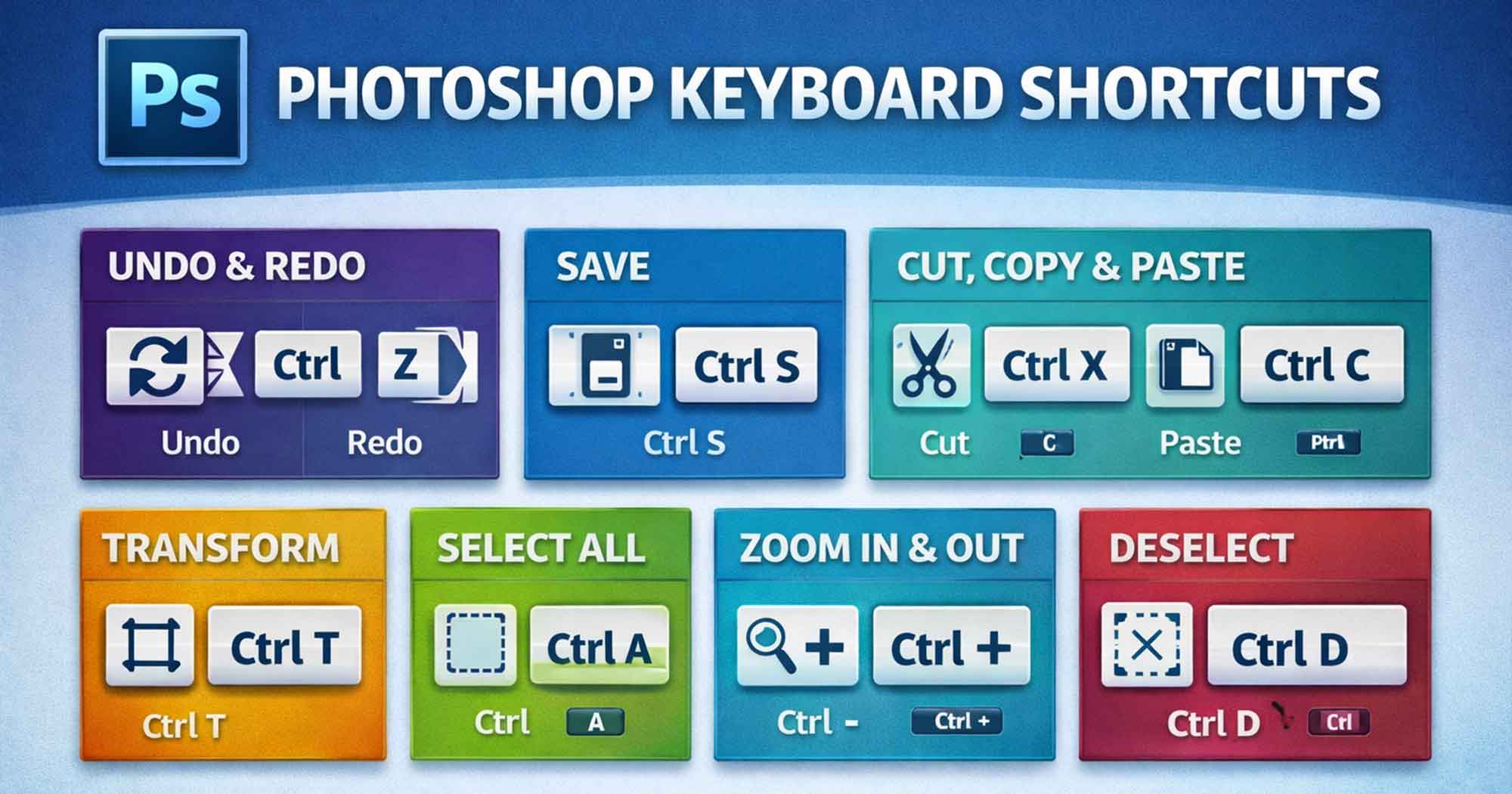
Keyboard shortcuts are the fastest way to speed up your Photoshop workflow. Instead of clicking through menus, a single key press gets the job done in milliseconds. This guide covers every important Photoshop shortcut — organized by category — plus an Instant Shortcut Finder tool so you never have to scroll just to find one shortcut.
How to Read This Guide
All shortcuts show Windows first, then Mac in parentheses. Example: Ctrl+Z (Mac: Cmd+Z)
What is Photoshop? The Industry Standard
Adobe Photoshop is the world's leading image editing and graphic design software. Whether you are retouching a photo, creating a digital painting, or designing a website mockup, Photoshop provides the tools needed to bring your vision to life. Mastering photoshop keyboard shortcuts 2026 is the first step toward becoming a pro designer.
How to Photoshop: Using Shortcuts Effectively
Knowing how to photoshop isn't just about clicking buttons; it's about efficiency. Professional designers keep one hand on the mouse/tablet and the other on the keyboard. This "two-handed" workflow allows you to switch tools, adjust brush sizes, and zoom in/out without ever breaking your creative focus.
Start with the Core 5
Don't try to learn all 500+ shortcuts at once. Start with: V (Move), B (Brush), Ctrl+J (Duplicate), Ctrl+T (Transform), and Ctrl+Z (Undo).
Use the Finder Tool
Whenever you find yourself looking for a menu option, use our Instant Shortcut Finder below to see if there is a faster key combination.
Practice Daily
Force yourself to use the keyboard even when it feels slower at first. Within a week, muscle memory will take over.
Instant Shortcut Finder Tool
Don't want to scroll through the entire page? Just type any action below and get the shortcut instantly.
⚡ SHORTCUT DETECTIVE
Detect shortcuts or search manually.
How to use: Click the "PRESS KEYS" button, then hit any shortcut on your keyboard (e.g., Ctrl + J). The tool will instantly identify it!
New Document
Open File
Save As
Export As
Copy
Paste
Cut
Undo Actions
Step Backward
Move Tool
Brush Tool
Eraser Tool
Must-Know Top Shortcuts
While Photoshop has hundreds of commands, 90% of your daily work will revolve around a small set of essential hotkeys. Mastering these "Core 15" shortcuts allows you to keep your eyes on the canvas and your hands in a "resting position" on the left side of your keyboard. This reduces physical strain and keeps your creative flow uninterrupted. If you memorize nothing else from this guide, ensure these 15 actions become pure muscle memory.
Core Workflow Shortcuts
Efficient workflow starts with standard file operations and moving through your workspace quickly.
File Management Shortcuts
| Action | Windows | Mac |
|---|---|---|
| New Document | Ctrl+N | Cmd+N |
| Open File | Ctrl+O | Cmd+O |
| Open as Smart Object | Ctrl+Alt+O | Cmd+Opt+O |
| Save | Ctrl+S | Cmd+S |
| Save As | Ctrl+Shift+S | Cmd+Shift+S |
| Export As (Save for Web legacy) | Ctrl+Alt+Shift+S | Cmd+Opt+Shift+S |
| Export As (new dialog) | Ctrl+Alt+Shift+W | Cmd+Opt+Shift+W |
| Close Document | Ctrl+W | Cmd+W |
| Close All Documents | Ctrl+Alt+W | Cmd+Opt+W |
Ctrl+P | Cmd+P | |
| Undo | Ctrl+Z | Cmd+Z |
| Step Backward (Multiple Undo) | Ctrl+Alt+Z | Cmd+Opt+Z |
| Step Forward (Redo) | Ctrl+Shift+Z | Cmd+Shift+Z |
| Revert to Last Saved | F12 | F12 |
| Preferences | Ctrl+K | Cmd+K |
| Keyboard Shortcuts Editor | Ctrl+Alt+Shift+K | Cmd+Opt+Shift+K |
Designer Tip: Always use
Ctrl+Severy few minutes. While Photoshop has Auto-Recovery, manual saving is a habit that saves careers. If you're working on a final export,Ctrl+Alt+Shift+Wis the modern way to get precise control over PNG/JPG compression.
Tool Selection Shortcuts
Press a single letter to instantly switch to any tool. Press Shift + that letter to cycle through related tools.
Selection & Crop Tools
| Key | Tool | Notes |
|---|---|---|
V | Move Tool | Most-used tool. Move layers and objects |
M | Rectangular Marquee | Shift+M for Elliptical Marquee |
L | Lasso Tool | Shift+L: Polygonal → Magnetic Lasso |
W | Quick Selection Tool | Shift+W for Magic Wand |
C | Crop Tool | Shift+C: Slice, Perspective Crop |
Retouching Tools
| Key | Tool | Notes |
|---|---|---|
J | Spot Healing Brush | Shift+J: Healing Brush, Patch, Red Eye |
B | Brush Tool | Shift+B: Pencil, Color Replacement, Mixer Brush |
S | Clone Stamp Tool | Shift+S for Pattern Stamp |
Y | History Brush Tool | Shift+Y for Art History Brush |
E | Eraser Tool | Shift+E: Background Eraser, Magic Eraser |
O | Dodge Tool | Shift+O: Burn, Sponge |
R | Blur Tool | Shift+R: Sharpen, Smudge |
Drawing & Shape Tools
| Key | Tool | Notes |
|---|---|---|
G | Gradient Tool | Shift+G for Paint Bucket |
P | Pen Tool | Shift+P: Freeform Pen, Curvature Pen |
A | Path Selection Tool | Shift+A for Direct Selection Tool |
T | Horizontal Type Tool | Shift+T: Vertical Type, Type Mask |
U | Rectangle Tool (Shapes) | Shift+U: Ellipse, Polygon, Custom Shape |
H | Hand Tool | Hold Spacebar for temporary access |
Z | Zoom Tool | Ctrl+= to zoom in, Ctrl+- to zoom out |
I | Eyedropper Tool | Shift+I: Color Sampler, Ruler, Note |
K | 3D Material Eyedropper | Only in 3D workspace |
N | 3D Camera Rotate Tool | Only in 3D workspace |
Pro Tip
Go to Edit → Preferences → Tools and enable "Use Shift Key for Tool Switch". Pressing the same letter key cycles through related tools in that group.
Layer Shortcuts
Managing the layer stack is the heart of Photoshop composition. Without these shortcuts, you'll spend half your time just looking at the layers panel.
Creating & Duplicating
| Action | Windows | Mac |
|---|---|---|
| New Layer (with dialog) | Ctrl+Shift+N | Cmd+Shift+N |
| New Layer (no dialog, instant) | Ctrl+Alt+Shift+N | Cmd+Opt+Shift+N |
| Duplicate Layer | Ctrl+J | Cmd+J |
| Duplicate Layer via Cut | Ctrl+Shift+J | Cmd+Shift+J |
| Create Clipping Mask | Ctrl+Alt+G | Cmd+Opt+G |
| Add Layer Mask (Reveal All) | Click mask icon in Layers panel | Same |
| Add Layer Mask (Hide All) | Alt+click mask icon | Opt+click mask icon |
Moving & Selecting Layers
| Action | Windows | Mac |
|---|---|---|
| Select All Layers | Ctrl+Alt+A | Cmd+Opt+A |
| Select Next Layer Up | Alt+] | Opt+] |
| Select Next Layer Down | Alt+[ | Opt+[ |
| Move Layer Up in Stack | Ctrl+] | Cmd+] |
| Move Layer Down in Stack | Ctrl+[ | Cmd+[ |
| Move Layer to Top | Ctrl+Shift+] | Cmd+Shift+] |
| Move Layer to Bottom | Ctrl+Shift+[ | Cmd+Shift+[ |
Merging & Grouping
| Action | Windows | Mac |
|---|---|---|
| Group Selected Layers | Ctrl+G | Cmd+G |
| Ungroup Layers | Ctrl+Shift+G | Cmd+Shift+G |
| Merge Selected Layers | Ctrl+E | Cmd+E |
| Merge Visible Layers | Ctrl+Shift+E | Cmd+Shift+E |
| Flatten Image | Ctrl+Alt+Shift+E (stamp visible) | Cmd+Opt+Shift+E |
| Merge Down | Ctrl+E (with single layer selected) | Cmd+E |
Layer Opacity & Visibility
| Action | Shortcut | Notes |
|---|---|---|
| Set Opacity to 10% | 1 | With Move tool active |
| Set Opacity to 50% | 5 | With Move tool active |
| Set Opacity to 100% | 0 | With Move tool active |
| Set Opacity to 35% | Type 3 then 5 fast | Press two digits quickly |
| Set Fill (not opacity) | Shift+number | Shift+5 = 50% fill |
| Show/Hide Layer | Click eye icon | Alt+click to solo that layer |
| Show ONLY selected layer | Alt+click eye icon | Hides all other layers |
| Lock Layer | / (forward slash) | Toggle lock |
Most Important Shortcut
Ctrl+J is the single most important Photoshop shortcut. It duplicates the selected layer instantly. Always duplicate before editing destructively — if something goes wrong, delete the duplicate and the original is safe. If you want to view PSD files without installing Photoshop, check out our guide on how to open a PSD file without Photoshop.
Selection & Power Tools
Precision work requires mastering selection boundaries and transformation modes.
Selection Shortcuts
| Action | Windows | Mac |
|---|---|---|
| Select All | Ctrl+A | Cmd+A |
| Deselect | Ctrl+D | Cmd+D |
| Reselect (bring back last selection) | Ctrl+Shift+D | Cmd+Shift+D |
| Inverse Selection | Ctrl+Shift+I | Cmd+Shift+I |
| Select and Mask (Refine Edge) | Ctrl+Alt+R | Cmd+Opt+R |
| Add to Selection | Hold Shift while selecting | Hold Shift |
| Subtract from Selection | Hold Alt while selecting | Hold Opt |
| Intersect with Selection | Hold Alt+Shift while selecting | Hold Opt+Shift |
| Constrain to square/circle | Hold Shift while dragging | Hold Shift |
| Draw selection from center | Hold Alt while dragging | Hold Opt |
| Move selection outline only | Arrow keys (with selection tool active) | Arrow keys |
| Feather Selection | Shift+F6 | Shift+F6 |
| Load Layer as Selection | Ctrl+click layer thumbnail | Cmd+click thumbnail |
| Add Layer to Selection | Ctrl+Shift+click thumbnail | Cmd+Shift+click |
| Subtract Layer from Selection | Ctrl+Alt+click thumbnail | Cmd+Opt+click |
| Subject Selection (AI) | Select → Subject | Select → Subject |
| Sky Selection (AI) | Select → Sky | Select → Sky |
| Grow Selection | Select → Grow | Select → Grow |
| Similar Selection | Select → Similar | Select → Similar |
Pro-Tip: The "Subject Selection" AI is great, but always follow it up with
Ctrl+Alt+R(Select and Mask) to fix hair and soft edges. A good selection is what separates amateur work from professional results.
Transform & Move Shortcuts
| Action | Windows | Mac |
|---|---|---|
| Free Transform | Ctrl+T | Cmd+T |
| Confirm Transform | Enter | Return |
| Cancel Transform | Esc | Esc |
| Scale proportionally | Hold Shift + drag corner | Hold Shift |
| Scale from center | Hold Alt while dragging | Hold Opt |
| Rotate in 15° increments | Hold Shift while rotating | Hold Shift |
| Distort (drag corner freely) | Hold Ctrl + drag corner | Hold Cmd |
| Skew (drag side handle) | Hold Ctrl+Shift + drag side | Hold Cmd+Shift |
| Perspective transform | Hold Ctrl+Alt+Shift | Hold Cmd+Opt+Shift |
| Warp mode | Right-click inside transform → Warp | Right-click → Warp |
| Move object 1 pixel | Arrow keys | Arrow keys |
| Move object 10 pixels | Shift+Arrow keys | Shift+Arrow keys |
| Repeat Last Transform | Ctrl+Shift+T | Cmd+Shift+T |
| Content-Aware Scale | Ctrl+Alt+Shift+C | Cmd+Opt+Shift+C |
Smart Object Tip
Convert a layer to a Smart Object (right-click → Convert to Smart Object) before using Free Transform. On Smart Objects, transforms are fully non-destructive — you can resize up and down multiple times without any quality loss.
Expert Hidden Shortcuts
These are the shortcuts most designers never discover. Mastering these "cheat codes" will put you ahead of 90% of Photoshop users and dramatically reduce the time you spend on repetitive tasks.
Creative & View Controls
Precision work requires complete control over your workspace. Whether you're zoomed in at 1600% to fix a single pixel or rotating your canvas to get the perfect brush stroke angle, these navigation and brush controls ensure you never lose your orientation. Designers who master these can navigate complex documents with ease without ever opening the Navigator panel.
Brush & Painting Shortcuts
| Action | Windows | Mac |
|---|---|---|
| Decrease Brush Size | [ | [ |
| Increase Brush Size | ] | ] |
| Decrease Brush Hardness by 25% | Shift+[ | Shift+[ |
| Increase Brush Hardness by 25% | Shift+] | Shift+] |
| Paint a straight line | Click, then Shift+Click | Same |
| Open Brush Preset Picker | Right-click on canvas | Ctrl+click on canvas |
| Previous Brush in list | , (comma) | , |
| Next Brush in list | . (period) | . |
| First Brush in list | < | < |
| Last Brush in list | > | > |
| Set Brush Opacity 10% | 1 (with brush active) | 1 |
| Set Brush Opacity 50% | 5 (with brush active) | 5 |
| Set Brush Opacity 100% | 0 (with brush active) | 0 |
| Set Brush Flow 10% | Shift+1 (with brush active) | Shift+1 |
| Set Brush Flow 100% | Shift+0 | Shift+0 |
| Temporarily switch to Eraser | Hold ` (backtick) | Hold ` |
| Sample color while painting | Hold Alt | Hold Opt |
| Open Brush Settings Panel | F5 | F5 |
| Toggle Airbrush mode | Shift+Alt+P | Shift+Opt+P |
Expert Hack: Don't use the UI slider for brush size. Use the
[and]keys exclusively. This allows you to change size in the middle of a stroke without jumping your eyes to the top of the screen.
Color & Fill Shortcuts
| Action | Windows | Mac |
|---|---|---|
| Reset to Default Colors (Black/White) | D | D |
| Swap Foreground/Background Color | X | X |
| Fill with Foreground Color | Alt+Delete | Opt+Delete |
| Fill with Background Color | Ctrl+Delete | Cmd+Delete |
| Fill with Content-Aware | Shift+F5 → Content-Aware | Same |
| Open Fill Dialog | Shift+F5 | Shift+F5 |
| Sample color (Eyedropper) | I | I |
| Open Color Picker | Click foreground/background swatch | Same |
| Color Balance | Ctrl+B | Cmd+B |
| Hue/Saturation | Ctrl+U | Cmd+U |
| Desaturate (remove color) | Ctrl+Shift+U | Cmd+Shift+U |
| Vibrance (via adjustment layer) | Layer menu → New Adjustment → Vibrance | Same |
View & Navigation Shortcuts
| Action | Windows | Mac |
|---|---|---|
| Zoom In | Ctrl+= | Cmd+= |
| Zoom Out | Ctrl+- | Cmd+- |
| Fit Image to Screen | Ctrl+0 | Cmd+0 |
| Zoom to 100% (Actual Pixels) | Ctrl+1 | Cmd+1 |
| Zoom to 200% | Ctrl+2 | Cmd+2 |
| Scroll canvas with Hand Tool | Hold Spacebar | Hold Spacebar |
| Zoom in by dragging | Hold Ctrl+Spacebar + drag | Hold Cmd+Spacebar + drag |
| Zoom out by dragging | Hold Ctrl+Alt+Spacebar + drag | Hold Cmd+Opt+Spacebar + drag |
| Show/Hide Rulers | Ctrl+R | Cmd+R |
| Show/Hide Guides | Ctrl+; | Cmd+; |
| Show/Hide Grid | Ctrl+' | Cmd+' |
| Snap to Guides (toggle) | Ctrl+Shift+; | Cmd+Shift+; |
| Lock Guides | Ctrl+Alt+; | Cmd+Opt+; |
| Show/Hide Extras (guides, grids) | Ctrl+H | Cmd+H |
| Toggle Full Screen Mode | F (cycle modes) | F |
| Hide/Show All Panels | Tab | Tab |
| Hide/Show Tool Options Bar | Shift+Tab | Shift+Tab |
| Rotate Canvas View (not image) | R (Rotate View Tool) | R |
| Reset Canvas Rotation | Esc while in Rotate View | Esc |
| Proof Colors (soft proofing) | Ctrl+Y | Cmd+Y |
| Gamut Warning | Ctrl+Shift+Y | Cmd+Shift+Y |
Specialist Functions
Advanced design work requires mastering typography, blending modes, and non-destructive masking. These categories represent the "High-Level" skills in Photoshop. Whether you're a typesetter, a digital painter, or a photo compositor, these specific shortcuts are what make the software feel like an extension of your creative mind rather than just a computer program.
Type / Text Shortcuts
These shortcuts work when the Type tool (T) is active and text is selected.
| Action | Windows | Mac |
|---|---|---|
| Activate Type Tool | T | T |
| Confirm text edit | Ctrl+Enter | Cmd+Return |
| Cancel text edit | Esc | Esc |
| Select all text in layer | Ctrl+A | Cmd+A |
| Bold | Ctrl+Shift+B | Cmd+Shift+B |
| Italic | `Ctrl+Shift+I" | `Cmd+Shift+I" |
| Underline | `Ctrl+Shift+U" | `Cmd+Shift+U" |
| Strikethrough | Ctrl+Shift+/ | Cmd+Shift+/ |
| Align Left | Ctrl+Shift+L | Cmd+Shift+L |
| Align Center | Ctrl+Shift+C | Cmd+Shift+C |
| Align Right | Ctrl+Shift+R | Cmd+Shift+R |
| Increase Font Size by 2pt | Ctrl+Shift+. | Cmd+Shift+. |
| Decrease Font Size by 2pt | Ctrl+Shift+, | Cmd+Shift+, |
| Increase Font Size by 10pt | Ctrl+Alt+Shift+. | Cmd+Opt+Shift+. |
| Decrease Font Size by 10pt | Ctrl+Alt+Shift+, | Cmd+Opt+Shift+, |
| Increase Kerning/Tracking | Alt+→ | Opt+→ |
| Decrease Kerning/Tracking | Alt+← | Opt+← |
| Increase Leading | Alt+↓ | Opt+↓ |
| Decrease Leading | Alt+↑ | Opt+↑ |
| Reset Kerning/Tracking to 0 | Ctrl+Alt+Q | Cmd+Opt+Q |
| Reset Leading to Auto | Ctrl+Alt+Shift+A | Cmd+Opt+Shift+A |
| All Caps toggle | Ctrl+Shift+K | Cmd+Shift+K |
| Superscript toggle | Ctrl+Shift++ | Cmd+Shift++ |
| Subscript toggle | Ctrl+Alt+Shift++ | Cmd+Opt+Shift++ |
Blending Modes Shortcuts
Select the Move Tool (V) first, then use these shortcuts to change blending modes. To cycle through all modes: Shift++ (forward) or Shift+- (backward).
| Blend Mode | Windows | Mac |
|---|---|---|
| Normal | Shift+Alt+N | Shift+Opt+N |
| Dissolve | `Shift+Alt+I" | `Shift+Opt+I" |
| Darken | `Shift+Alt+K" | `Shift+Opt+K" |
| Multiply | `Shift+Alt+M" | `Shift+Opt+M" |
| Color Burn | `Shift+Alt+B" | `Shift+Opt+B" |
| Linear Burn | `Shift+Alt+A" | `Shift+Opt+A" |
| Lighten | `Shift+Alt+G" | `Shift+Opt+G" |
| Screen | `Shift+Alt+S" | `Shift+Opt+S" |
| Color Dodge | `Shift+Alt+D" | `Shift+Opt+D" |
| Linear Dodge (Add) | `Shift+Alt+W" | `Shift+Opt+W" |
| Overlay | `Shift+Alt+O" | `Shift+Opt+O" |
| Soft Light | `Shift+Alt+F" | `Shift+Opt+F" |
| Hard Light | `Shift+Alt+H" | `Shift+Opt+H" |
| Vivid Light | `Shift+Alt+V" | `Shift+Opt+V" |
| Linear Light | `Shift+Alt+J" | `Shift+Opt+J" |
| Pin Light | `Shift+Alt+Z" | `Shift+Opt+Z" |
| Difference | `Shift+Alt+E" | `Shift+Opt+E" |
| Exclusion | `Shift+Alt+X" | `Shift+Opt+X" |
| Hue | `Shift+Alt+U" | `Shift+Opt+U" |
| Saturation | `Shift+Alt+T" | `Shift+Opt+T" |
| Color | `Shift+Alt+C" | `Shift+Opt+C" |
| Luminosity | `Shift+Alt+Y" | `Shift+Opt+Y" |
Smart Objects & Masks Shortcuts
Smart Objects and masks are the core of non-destructive editing. These shortcuts make working with them much faster.
| Action | Windows | Mac |
|---|---|---|
| Convert to Smart Object | Right-click layer → Convert to Smart Object | Same |
| Edit Smart Object contents | Double-click Smart Object thumbnail | Same |
| Add Layer Mask (Reveal All) | Click mask icon at bottom of Layers panel | Same |
| Add Layer Mask (Hide All) | Alt+click mask icon | Opt+click mask icon |
| Apply/Commit Layer Mask | Right-click mask → Apply Layer Mask | Same |
| Delete Layer Mask | Right-click mask → Delete Layer Mask | Same |
| View Layer Mask alone | Alt+click on mask thumbnail | Opt+click on mask thumbnail |
| Disable/Enable Layer Mask | Shift+click on mask thumbnail | Same |
| Move mask to another layer | Alt+drag mask thumbnail | Opt+drag mask thumbnail |
| Create Clipping Mask | Ctrl+Alt+G | Cmd+Opt+G |
| Release Clipping Mask | Ctrl+Alt+G (again) | Cmd+Opt+G |
Adjustments & Automation
Finalize your work with precise adjustments and time-saving automation steps.
Image Adjustments Shortcuts
| Action | Windows | Mac |
|---|---|---|
| Levels | Ctrl+L | Cmd+L |
| Curves | Ctrl+M | Cmd+M |
| Hue/Saturation | Ctrl+U | Cmd+U |
| Color Balance | Ctrl+B | Cmd+B |
| Black & White | Ctrl+Alt+Shift+B | Cmd+Opt+Shift+B |
| Desaturate | Ctrl+Shift+U | Cmd+Shift+U |
| Invert | Ctrl+I | Cmd+I |
| Auto Tone | Ctrl+Shift+L | Cmd+Shift+L |
| Auto Contrast | Ctrl+Alt+Shift+L | Cmd+Opt+Shift+L |
| Auto Color | Ctrl+Shift+B | Cmd+Shift+B |
| Brightness/Contrast | Image → Adjustments → Brightness/Contrast | Same |
| Shadows/Highlights | Image → Adjustments → Shadows/Highlights | Same |
| Image Size | Ctrl+Alt+I | Cmd+Opt+I |
| Canvas Size | Ctrl+Alt+C | Cmd+Opt+C |
| Rotate Canvas 90° CW | Image → Image Rotation → 90° CW | Same |
Workflow Advice: Never use Image → Adjustments directly on a layer. Always use Adjustment Layers via the bottom of the layer panel. This allows you to change your mind later without losing pixels.
Filters & Effects Shortcuts
| Action | Windows | Mac |
|---|---|---|
| Repeat Last Filter (same settings) | Ctrl+F | Cmd+F |
| Repeat Last Filter with Dialog | Ctrl+Alt+F | Cmd+Opt+F |
| Fade Last Filter or Tool | Ctrl+Shift+F | Cmd+Shift+F |
| Liquify Filter | Ctrl+Shift+X | Cmd+Shift+X |
| Vanishing Point | Ctrl+Alt+V | Cmd+Opt+V |
| Camera Raw Filter | Ctrl+Shift+A | Cmd+Shift+A |
| Neural Filters | Filter → Neural Filters | Filter → Neural Filters |
| Blur Gallery (Field, Iris, Tilt-Shift) | Filter → Blur Gallery | Filter → Blur Gallery |
Actions & Automation Shortcuts
| Action | Windows | Mac |
|---|---|---|
| Open Actions Panel | Alt+F9 | Opt+F9 |
| Start/Stop Recording Action | Click record button in Actions panel | Same |
| Play Selected Action | Click play button in Actions panel | Same |
| Play action step by step | Ctrl+click play button | Cmd+click play button |
| Run Action on Multiple Files | File → Automate → Batch | Same |
| Create Droplet from Action | File → Automate → Create Droplet | Same |
Mastering Photoshop Shortcuts
1. Create Your Own Custom Shortcuts
Go to Edit → Keyboard Shortcuts (Ctrl+Alt+Shift+K). Assign any key combination to any menu command, tool, or panel option. Save your custom set and export it so it stays consistent across all your machines.
2. Don't Memorize Everything at Once
Start with just 5 core shortcuts: V (Move), B (Brush), Ctrl+J (Duplicate), Ctrl+T (Transform), Ctrl+Z (Undo). Practice only those for a week until they are muscle memory. Then add 5 more. Within a month, you will have 20+ shortcuts locked in.
3. Cycle Through Blend Modes Like a Pro
Instead of memorizing all 22 blend mode shortcuts, hold Shift++ to step forward through modes and Shift+- to step backward. Stop when you see the look you want. This is often faster than even knowing the individual shortcuts.
4. Use Opacity Number Keys Strategically
When the Move tool (V) or Brush tool (B) is active, number keys set opacity. 1 = 10%, 5 = 50%, 0 = 100%. For exact values like 35%, press 3 then 5 quickly. This is dramatically faster than the opacity slider.
5. The Stamp Visible Trick (Ctrl+Alt+Shift+E)
This is one of the most powerful hidden shortcuts. It creates a new merged layer on top of all your existing layers — without flattening anything. Use it to create a "composite" layer you can apply filters to while keeping all your original layers untouched.
6. If Shortcuts Stop Working
- Caps Lock is on — this disables brush cursor and many shortcuts. Turn it off.
- Wrong tool is active — many shortcuts only work with specific tools selected.
- You are in text editing mode — press
Escfirst to exit text mode. - A plugin is intercepting the key — disable third-party plugins to test.
- Preferences are corrupted — hold
Ctrl+Alt+Shiftwhile launching Photoshop to reset preferences.
For more advanced workflows, you might also want to explore our guide on Best Free Photoshop Alternatives that offer similar shortcut customization.
Recommended YouTube Tutorials
Watch these guides to see the shortcuts in action:
Channel: PiXimperfect — The most complete guide.
Channel: Photoshop Training Channel — Master the layers panel.
Channel: Tutvid — Fast selection workflows.
Channel: Terry White — Professional Adobe expert tips.
Need PSD Help?
Your time is worth more than solving pixel errors. Hire a professional editor to handle the technical work while you focus on your business.
Frequently Asked Questions (FAQ)
What is the most important Photoshop shortcut to learn first?+
Ctrl+J (Cmd+J on Mac) — Duplicate Layer. This is the foundation of safe, non-destructive editing. Before you change anything, duplicate the layer. If something goes wrong, delete the duplicate and the original is untouched. The second most important is Ctrl+Z for undo, and the third is Ctrl+T for Free Transform.
What does Ctrl+T do in Photoshop?+
Ctrl+T opens Free Transform mode. This lets you resize, rotate, skew, distort, and warp the selected layer or selection. Press Enter to confirm or Esc to cancel. On Smart Objects, Free Transform is fully non-destructive — you can resize up and down multiple times without quality loss. Hold Shift to constrain proportions, hold Alt to transform from the center.
How do I undo multiple steps in Photoshop?+
Press Ctrl+Alt+Z (Windows) or Cmd+Opt+Z (Mac) repeatedly to step backward through your history. Ctrl+Z alone only toggles the last single action. If you want to undo many steps, use the Step Backward shortcut repeatedly, or open the History panel via Window → History and click directly on any previous state.
Why aren't my Photoshop shortcuts working?+
The most common reasons: (1) Caps Lock is on — turn it off, it disables many shortcuts including brush cursor visibility. (2) You are in text editing mode — press Esc first. (3) The shortcut requires a specific tool to be active. (4) A third-party plugin is intercepting the key. (5) Preferences are corrupted — hold Ctrl+Alt+Shift on launch to reset. (6) Function Lock (Fn Lock) is enabled on laptop keyboards, blocking F-key shortcuts.
Can I use the same shortcuts on Mac and Windows?+
Most shortcuts are identical with one rule: Ctrl on Windows = Cmd on Mac, and Alt on Windows = Option on Mac. A few shortcuts differ or behave differently on each platform. The full Adobe shortcut reference at helpx.adobe.com lists all platform-specific differences in detail.
How do I see all shortcuts inside Photoshop itself?+
Go to Edit → Keyboard Shortcuts or press Ctrl+Alt+Shift+K (Cmd+Opt+Shift+K on Mac). This opens a full list of all shortcuts organized by category — Application Menus, Panel Menus, and Tools. You can also hover over any tool in the toolbar and the tooltip will show its keyboard shortcut.
How do I create custom keyboard shortcuts in Photoshop?+
Go to Edit → Keyboard Shortcuts (Ctrl+Alt+Shift+K). Click any command in the list, then press the key combination you want to assign. If the combination is already used, Photoshop will warn you. Save your custom shortcut set as a preset and you can export it to use on other computers.
What is the shortcut for Content-Aware Fill in Photoshop?+
Make a selection first, then go to Edit → Content-Aware Fill. There is no single default keyboard shortcut for Content-Aware Fill, but you can assign one via Edit → Keyboard Shortcuts. The related Content-Aware Scale shortcut is Ctrl+Alt+Shift+C (Cmd+Opt+Shift+C on Mac).
What is the difference between Ctrl+Z and Ctrl+Alt+Z?+
Ctrl+Z in modern Photoshop (CC 2019 and later) undoes one step and toggles. Ctrl+Alt+Z steps backward through the history one step at a time — press it repeatedly to go back multiple steps. In older Photoshop versions, Ctrl+Z only toggled the very last action, so Ctrl+Alt+Z was essential for multi-step undo.
Conclusion
Keyboard shortcuts are the single fastest way to improve your Photoshop workflow. You do not need to memorize all of them at once — start with the essentials, use the Instant Shortcut Finder tool at the top of this page whenever you need a quick lookup, and gradually add more shortcuts to your muscle memory. Within a few weeks, you will be working dramatically faster and spending more time on creative decisions instead of navigating menus.
Bookmark this page and come back whenever you need to look up a shortcut. For the absolute source of truth, you can also visit the Official Adobe Photoshop Shortcuts List.
If you need to quickly save your design at any point, see our tutorial on how to convert PSD to JPG or PNG.
Need PSD Help?
Your time is worth more than solving pixel errors. Hire a professional editor to handle the technical work while you focus on your business.
About the Author
Devla Sarika Singh
Image Editor | PSD Mockup Designer | Photoshop Expert
I am a professional image editor specializing in Photoshop, custom PSD mockups, and high-quality image editing. I help businesses and creators convert images into editable mockups, with services like background removal, bulk mockups, and product image editing.